App notifications
Watch the following video about app notifications.
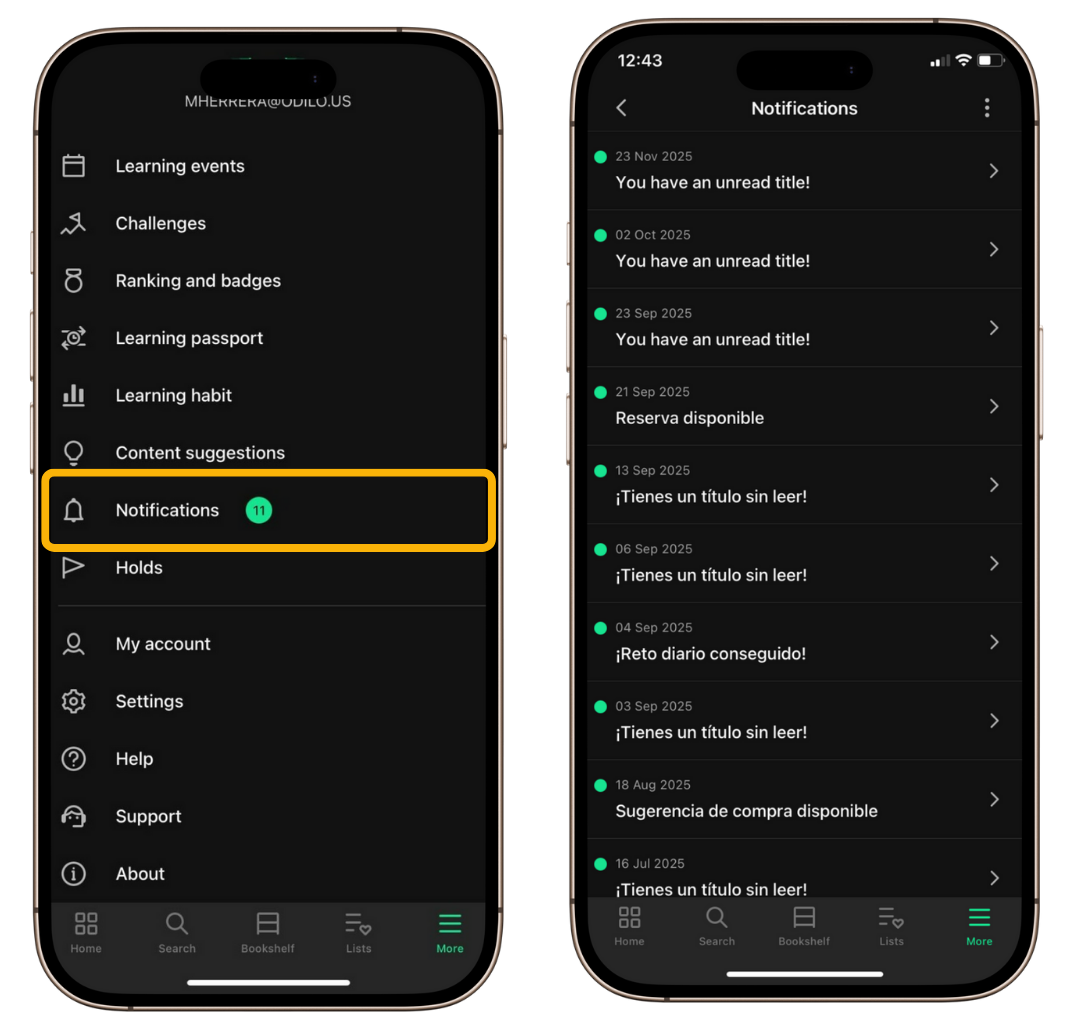
The app can send you alerts related to your activity, such as loans, reservations, or important updates. To review them, open More and go to Notifications.
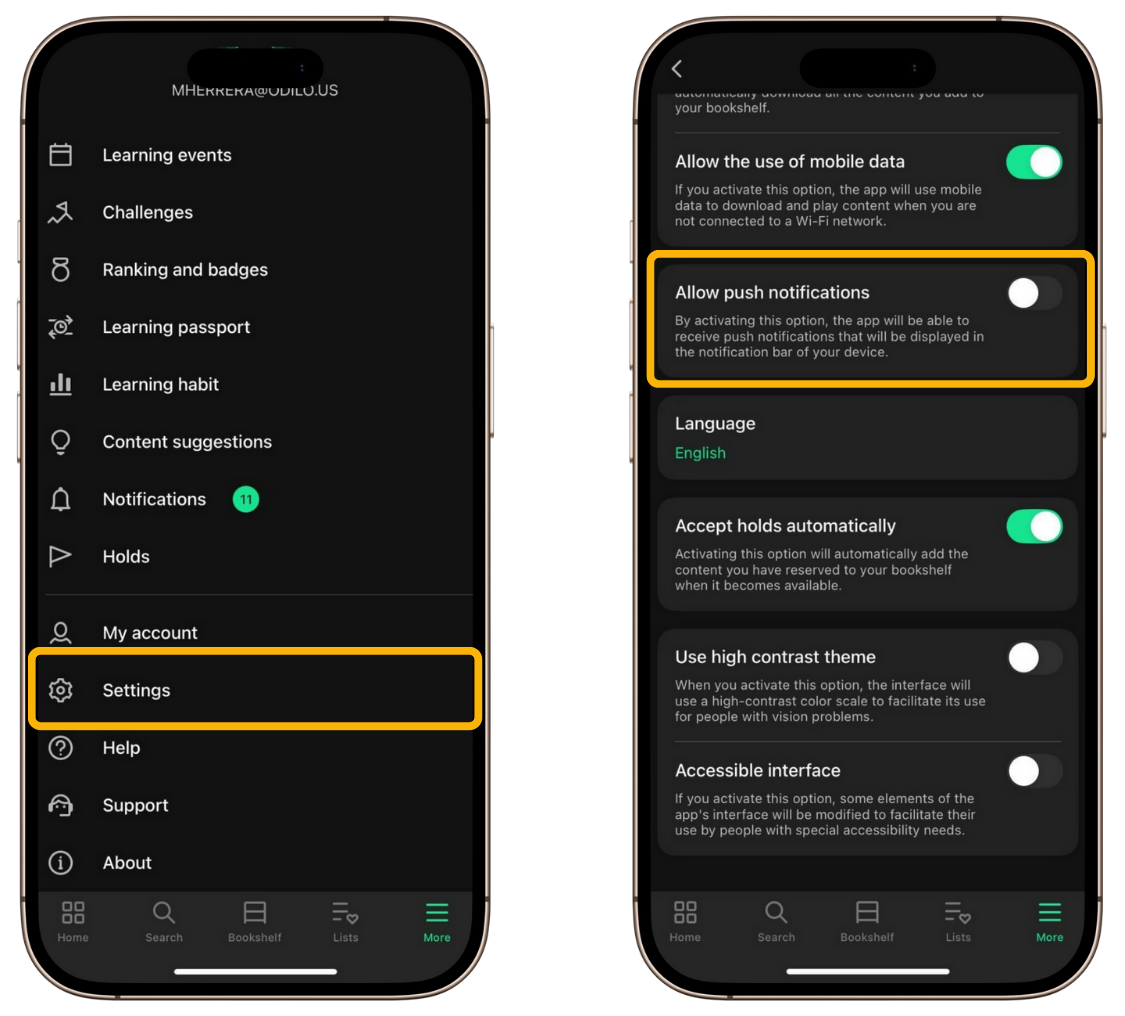
To receive notifications on your device screen, even when you are not using the app, make sure notifications are enabled in both places:
- On your device: Go to Settings, then Notifications, and allow the app to send alerts.
- Within the app: Open More, go to Settings, and enable the Allow push notifications toggle.
Turn off app notifications on your mobile device
If you do not want to receive any notifications from the app on your device, you should disable them from your device settings. This will completely stop notifications from appearing on your screen, even though they may still appear in the app’s Notifications section.
To disable notifications on your device:
- Go to Settings.
- Open Notifications.
- Find the app and disable notifications.
Once disabled, the app will stop sending alerts to your device until you enable them again.
Manage app notifications
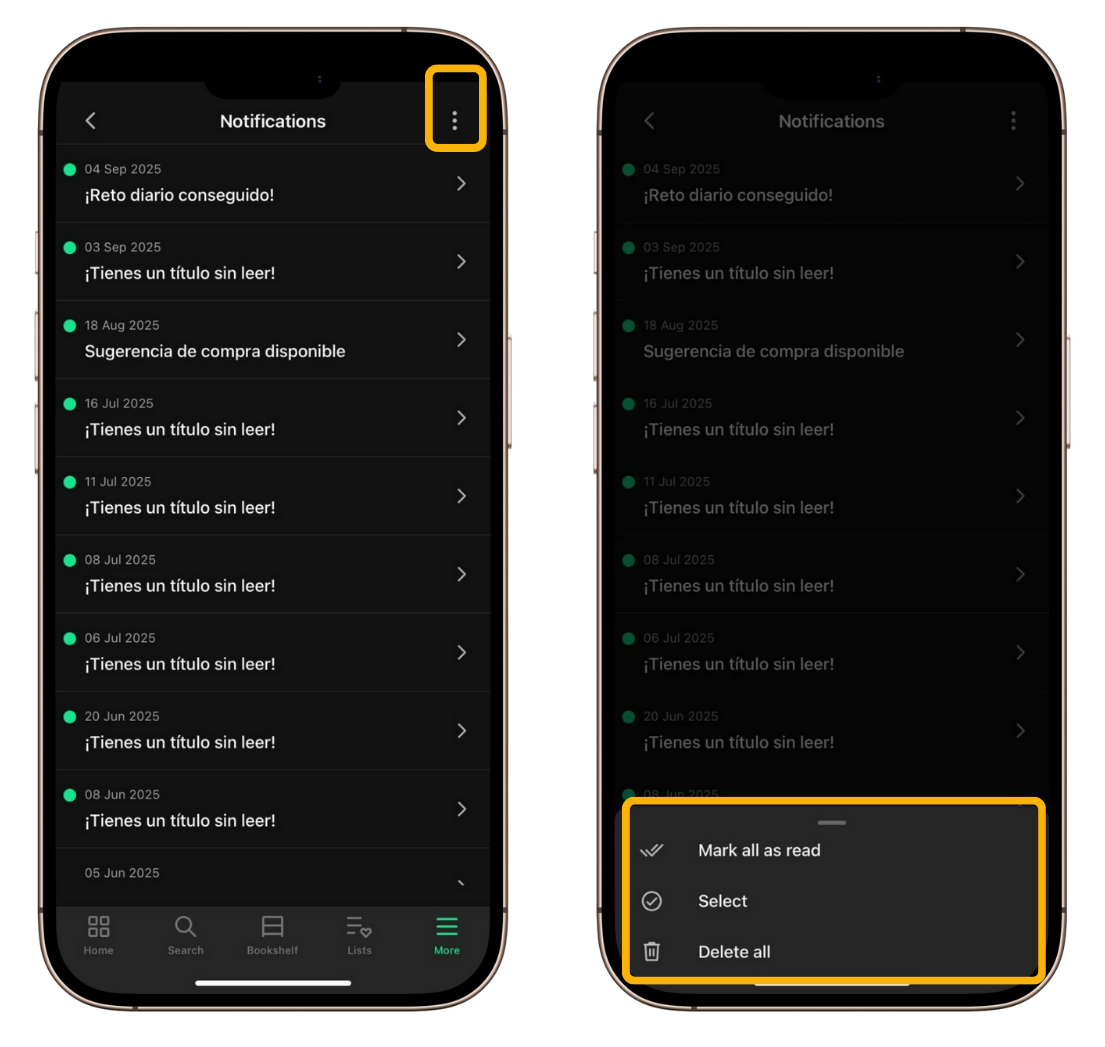
To manage notifications within the app:
- Open More and go to Notifications.
- Tap the three-dot icon in the top-right corner.
- Choose one of the following options:
- Mark all as read.
- Select and delete (allows you to choose specific notifications).
- Delete all.
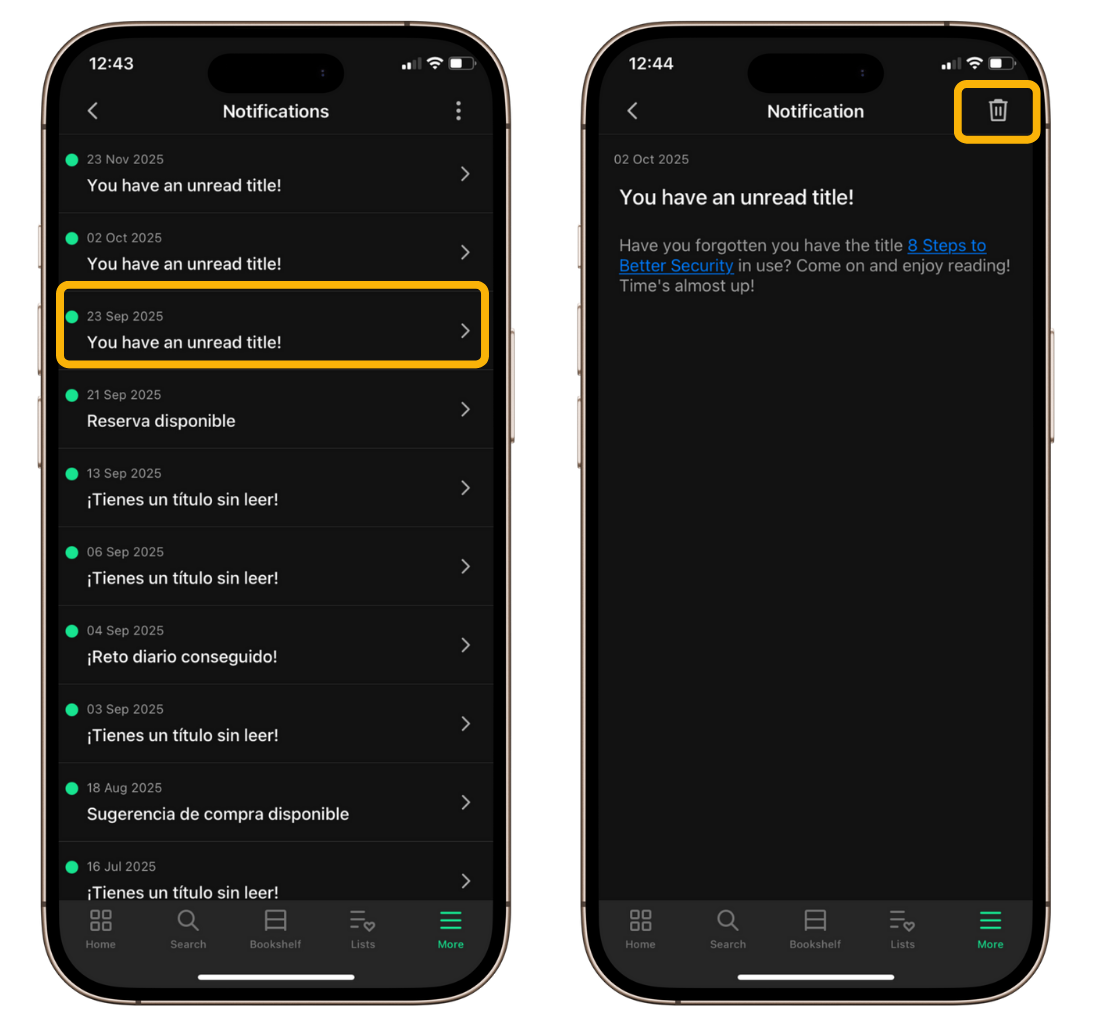
You can also delete an individual notification:
- Open it and tap the trash icon in the top-right corner.