Change password
If you want to change your password, follow these steps from your user area:
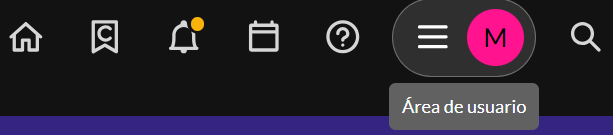
- Access your user area and select “My account”.
- Select the “Change password” option.
- Enter your Current Password in the first field.
- Enter your New Password twice to confirm.
- Click “Change password”.
Important note about external access:
If you sign in to the platform using direct access with Google or Microsoft accounts, your password must be managed directly by your institution’s administrator or designated contact.
Watch the following video to see how to recover or change your password.