Create a Learning Experience
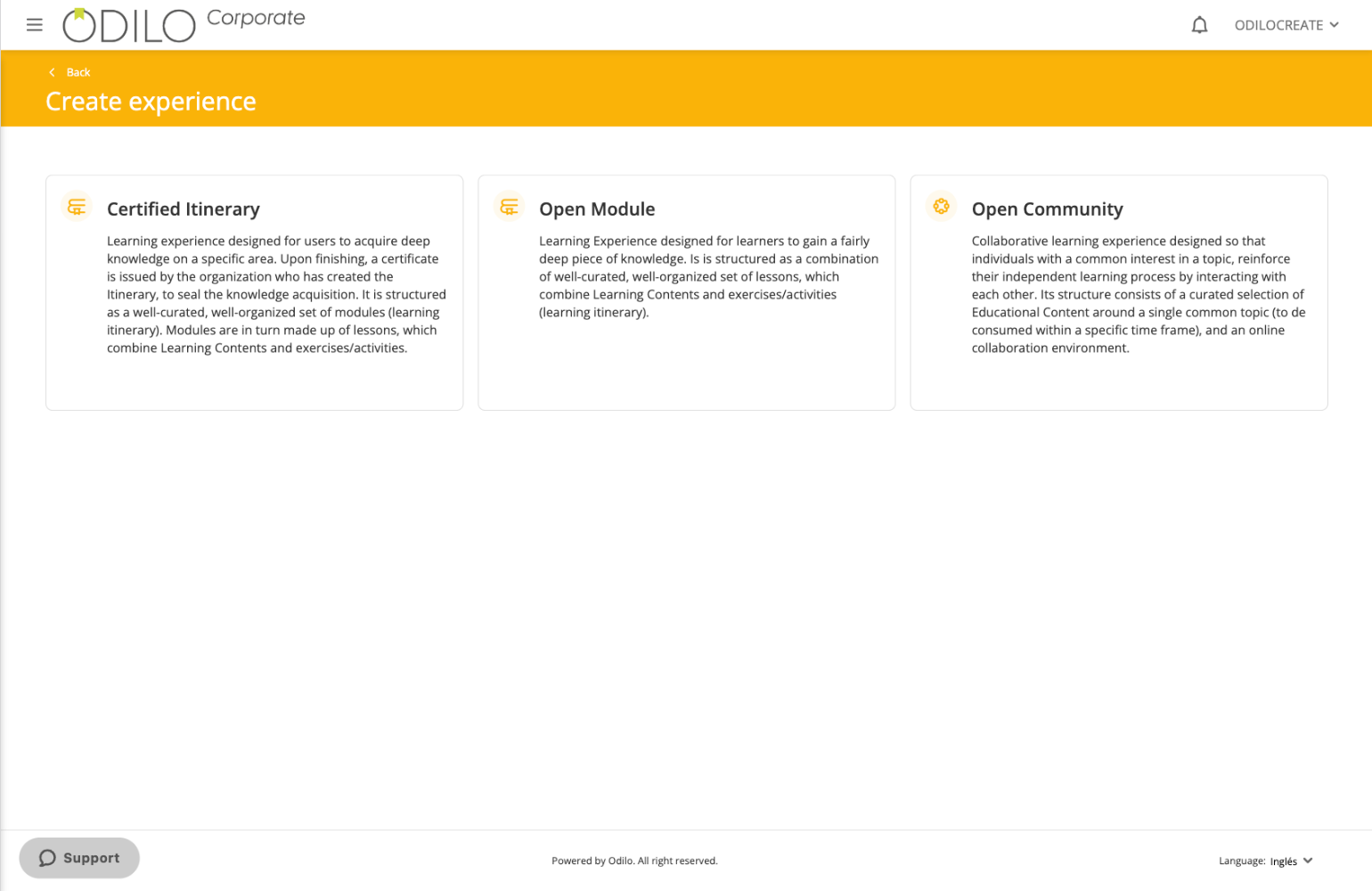
Before creating a Learning Experience, it is important to understand that the platform offers different types of experiences, each with a specific format and purpose.
1. Open Module
An Open Module is a structured learning path formed by lessons or modules, where users can learn at their own pace and move freely between lessons. Progress is achieved by completing each section, combining learning content with practical activities.
It allows you to:
- design a guided learning structure made up of lessons or modules
- add exercises and activities that can be evaluated by moderators track user progress,
- optionally issue a certificate upon completion of the itinerary.
This format is ideal for specific training programs that require practice.
2. Certified Itinerary
A Certified Itinerary is a learning path similar to an Open Module, with the key difference that it must be completed in a fixed order. Users cannot move freely between modules, and upon completion they receive a participation certificate. This format enables guided progression and deeper learning within a specific subject area.
It allows you to:
- design a guided learning structure made up of lessons or modules that must be completed in order
- add exercises and activities evaluated by moderators track user progress
- optionally issue a certificate at the end of the itinerary.
It is recommended for structured training programs with mandatory certification.
3. Open Community
An Open Community is designed to create a collaborative environment. It combines a curated selection of content on a specific topic with a digital interaction space where participants can share ideas, questions, and experiences through a forum or chat.
It allows you to:
- add resources from the learning ecosystem catalog
- include external links as complementary resources
- enable interaction between participants via forum or chat.
Important:
- Exercises cannot be added in this type of Learning Experience.
- It does not include grading or progress tracking, as its focus is on collaboration between users.
This format is ideal for encouraging knowledge sharing within the community, exchanging best practices, and activating thematic communities within the organization.
To create your own Learning Experiences, you will have two options:
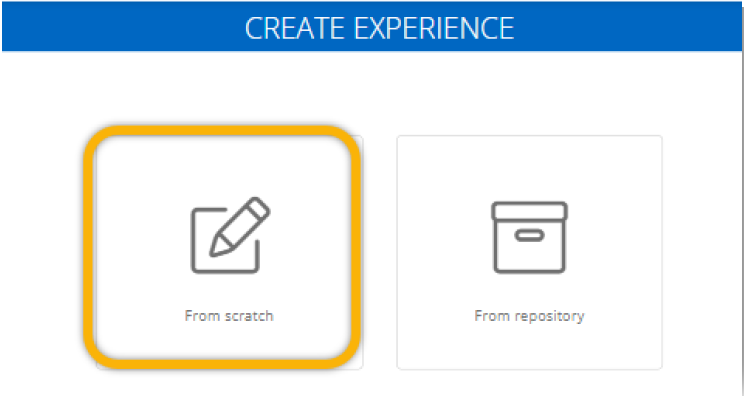
- From Scratch: Create Learning Experiences from start to finish by adding content, exercises, and more, everything personalized according to your needs.
- Cloning an Experience: In the learning ecosystem repository, you can store your experiences, allowing other moderators from your company to clone and reuse them.
Create from scratch
Watch the following video to learn how to create a Learning Experience from scratch.
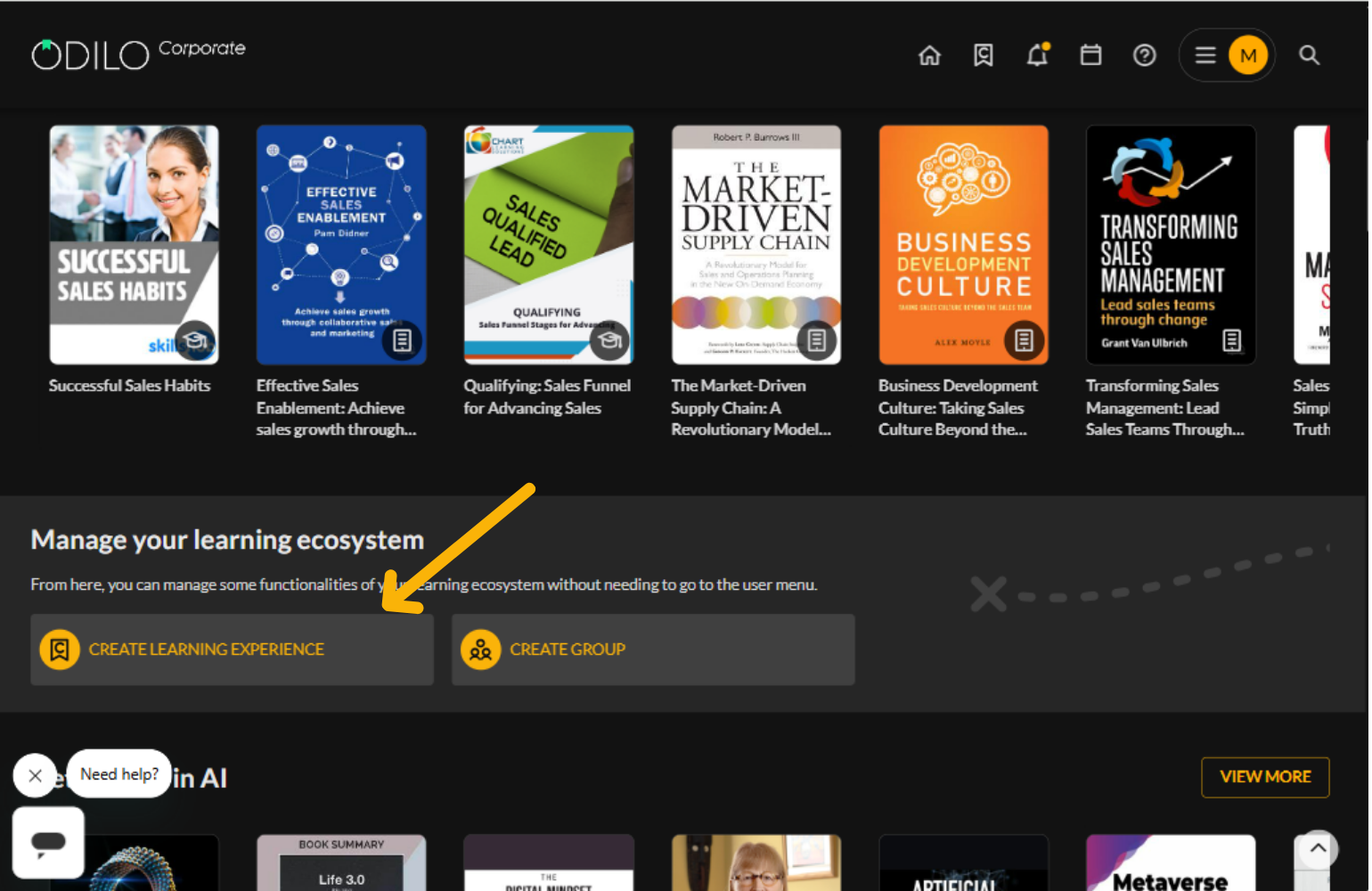
Click on the “Create learning experience” found below the first carousel and choose the type of experience you want to create.
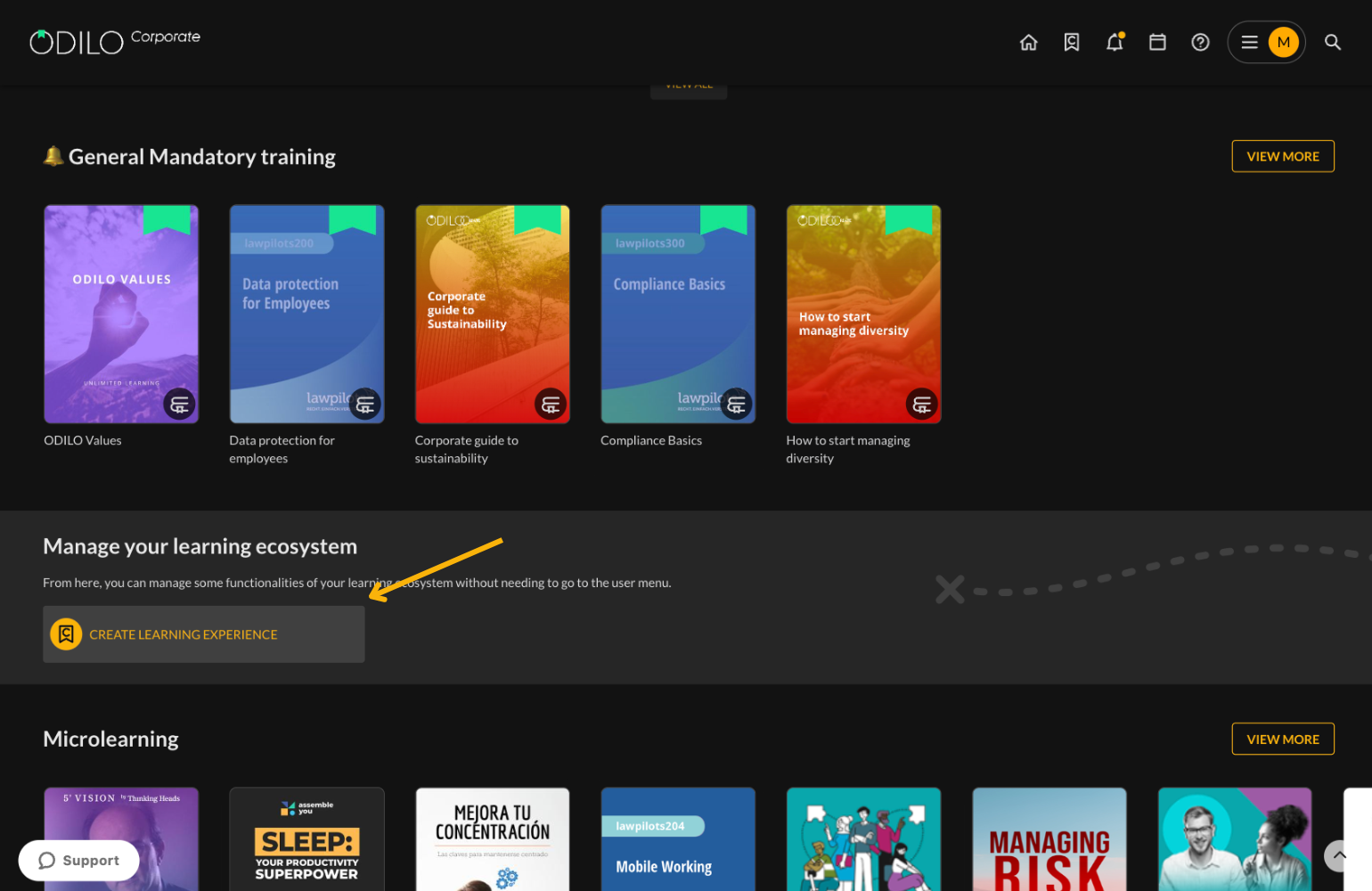
*If you cannot see this button, access “Learning experiences”, from your user area, click on “Go to learning experiences.
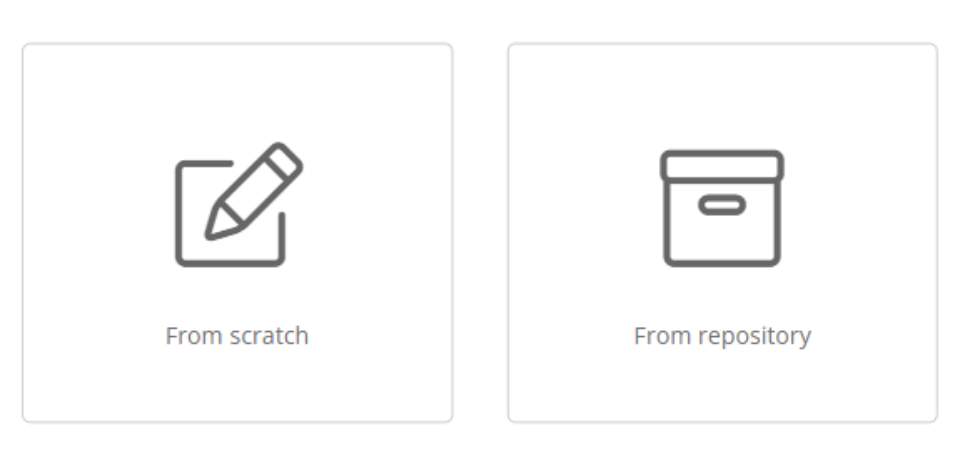
Select the option “From scratch” to create a new, empty experience.
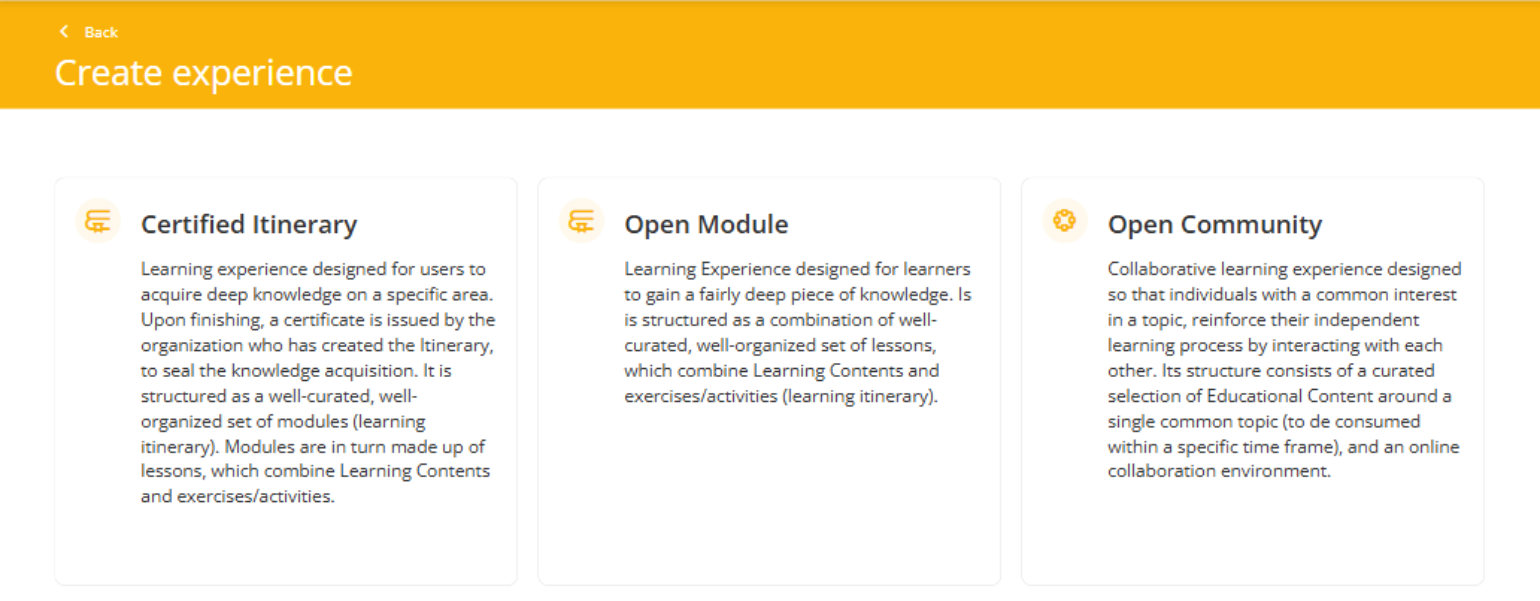
You can configure the Learning Experience by completing the following fields. In this case, the Open Module type has been selected.
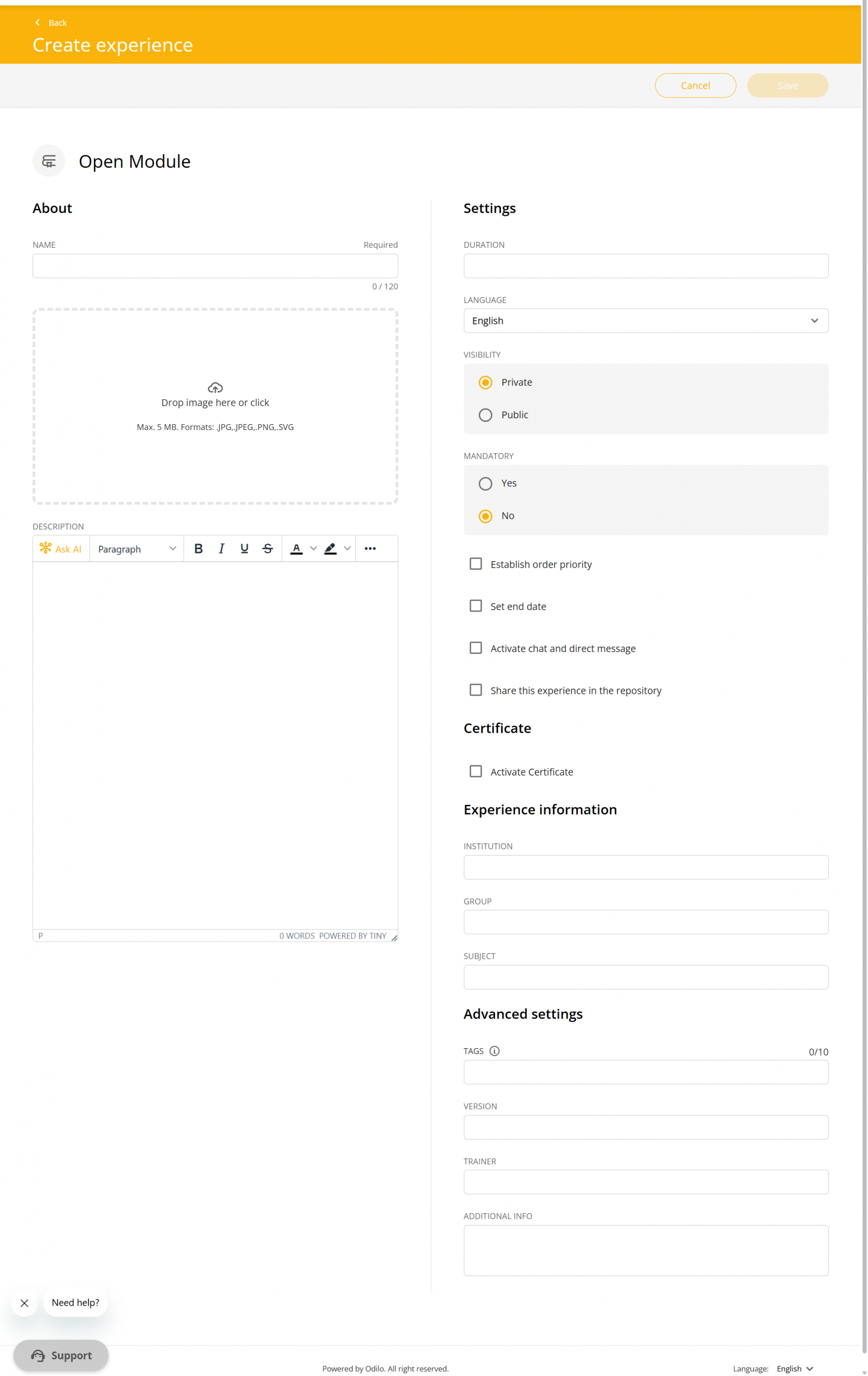
Name: It is recommended to name the experience precisely to be able to quickly identify it, for example: Topic, level and the name of the person responsible for the experience.
Cover : You can add an image from your computer.
Description: Add information relevant to the user regarding the experience. You can add images, graphics, videos or embedded elements. This will be the first thing users see when they access an experience.
Language: Choose the desired language.
Max. number of users: Allows the moderator to define how many people can participate in the Learning Experience. This field is only available on platforms where it has been enabled.
Visibility: Public experiences They will be accessible to all members of the organization without the need for an invitation. Private experiences will be visible to all users and can be shared via link. They are preferable when working with specific groups. Participants will need an invitation to join.
Mandatory: By designating mandatory, the user must complete each section and exercises in this Learning Experience in order to finish it and submit their work.
Establish order priority: Allows the moderator to require sequential progress. Users must complete each lesson to unlock the next one, with no option to skip between lessons.
Set End Date: There are two options to configure this setting:
- “Set start and end dates“: Defines a mandatory date range for users to complete the Learning Experience.
- “Limit days for completion“: Sets a specific amount of days to complete the Learning Experience within the given date range.
Important: If the Learning Experience is set as mandatory, an end date must be assigned.
Chat: As a moderator, you can activate or deactivate this tab at any time.
Share in repository: Enabling this option will allow other moderators to clone your experience.
Certificate: You can enable a certificate to be granted at the end of the experience, establishing an issuing date and cut-off mark. Users can download it and will also receive a link that will add this certificate directly to their LinkedIn profile, if they wish.
Experience information: Additional data.
Once you have finished setting up your experience, click the button “Save“.
Important: As a moderator, you will have an editing button  within each experience that will allow you to edit your content at any time.
Add lessons
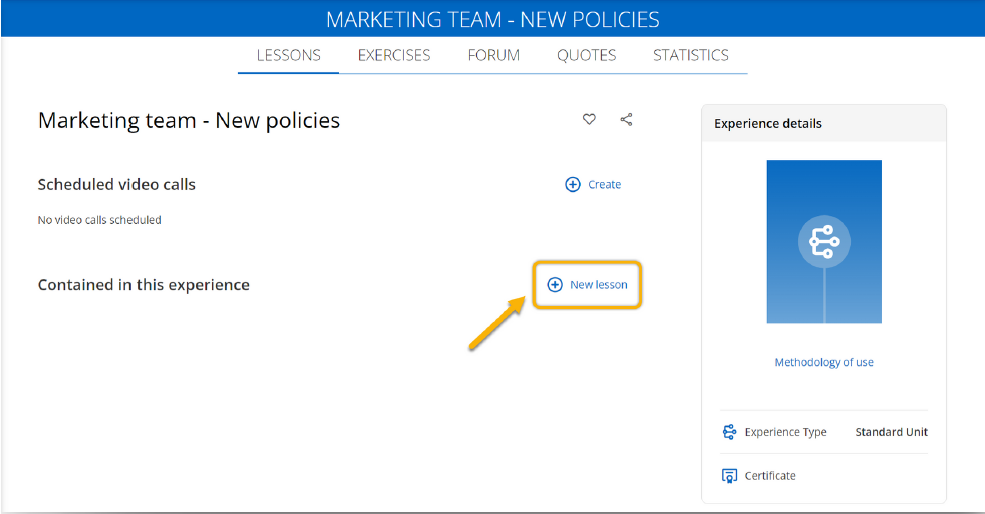
Click on the “New lesson” button. You can set your lesson and add sections within it.
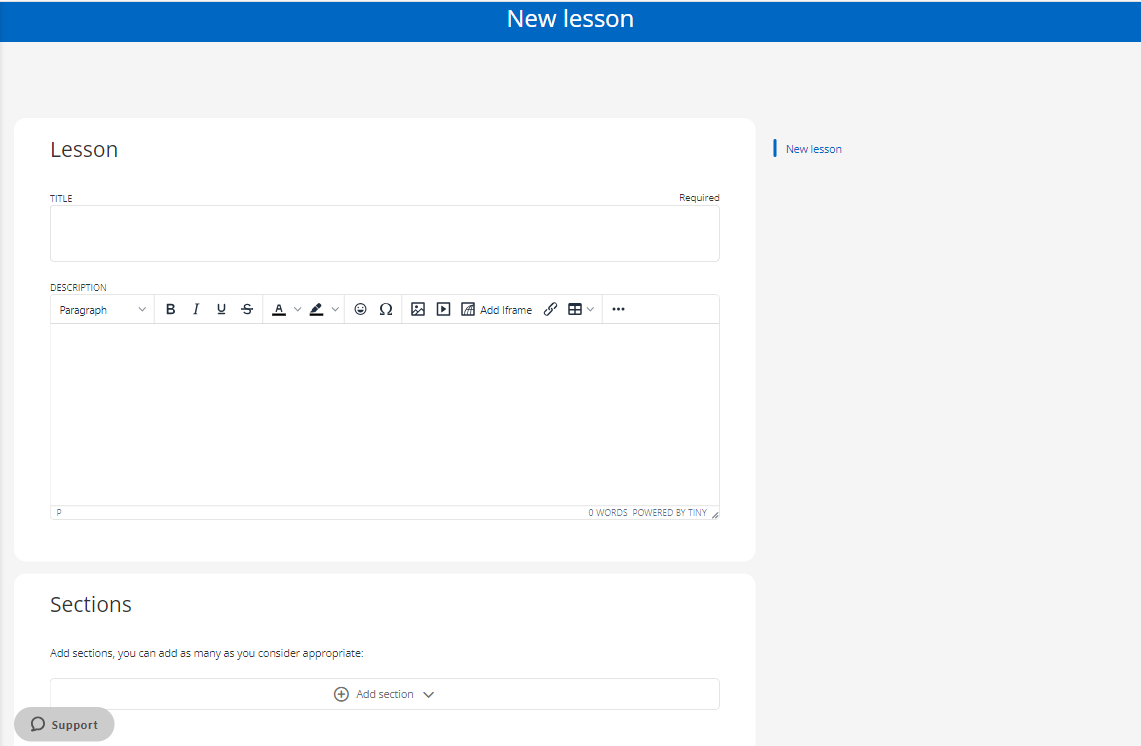
Important: Save your progress if you are not actively working on creating an experience. For security reasons, accounts are logged out after a set amount of inactivity.
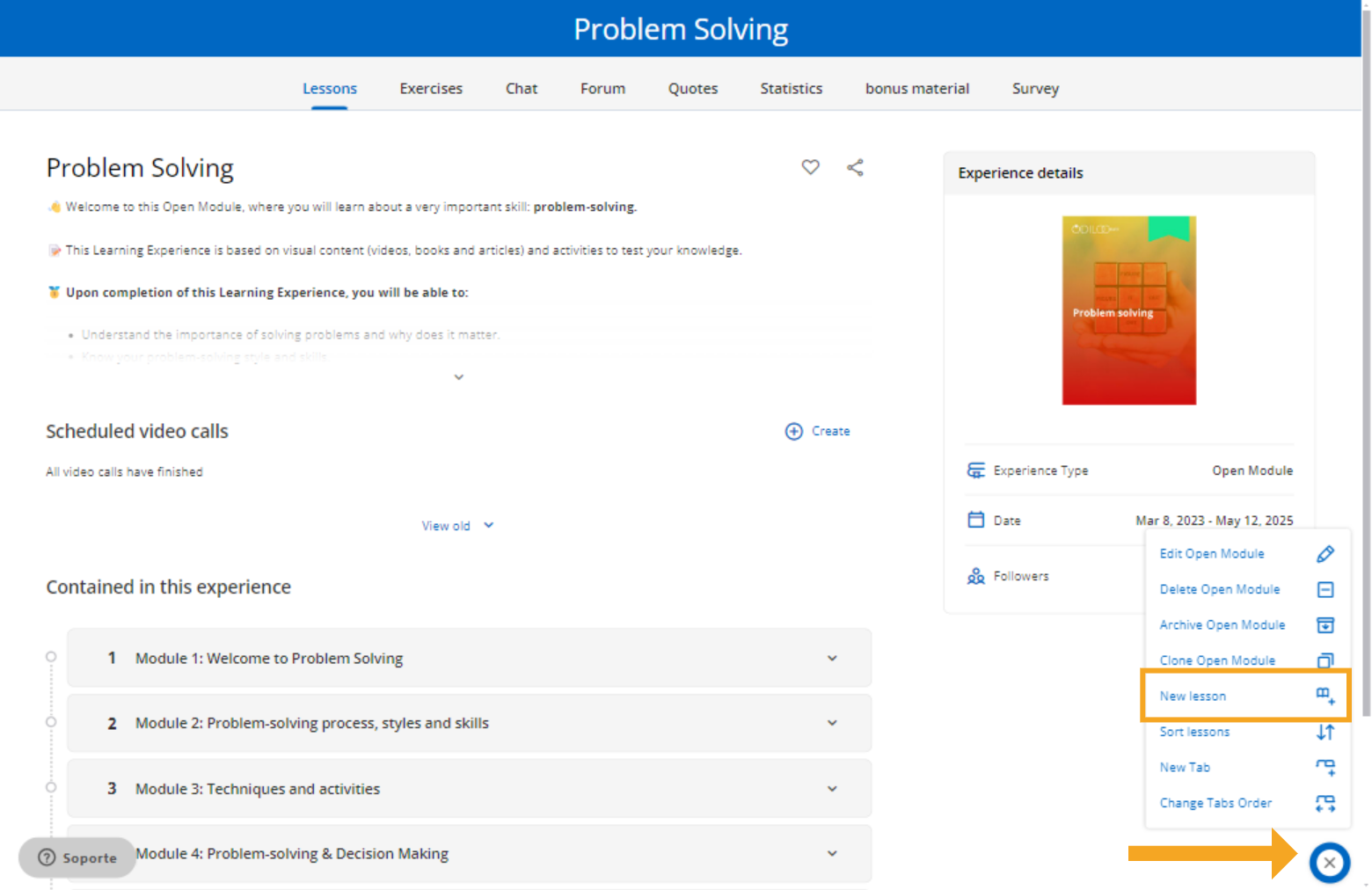
To continue adding lessons to your Learning Experience, click on the editing button in the lower right corner and select the “New Lesson” option.
Type of sections
Within your lessons you can add different types of sections.
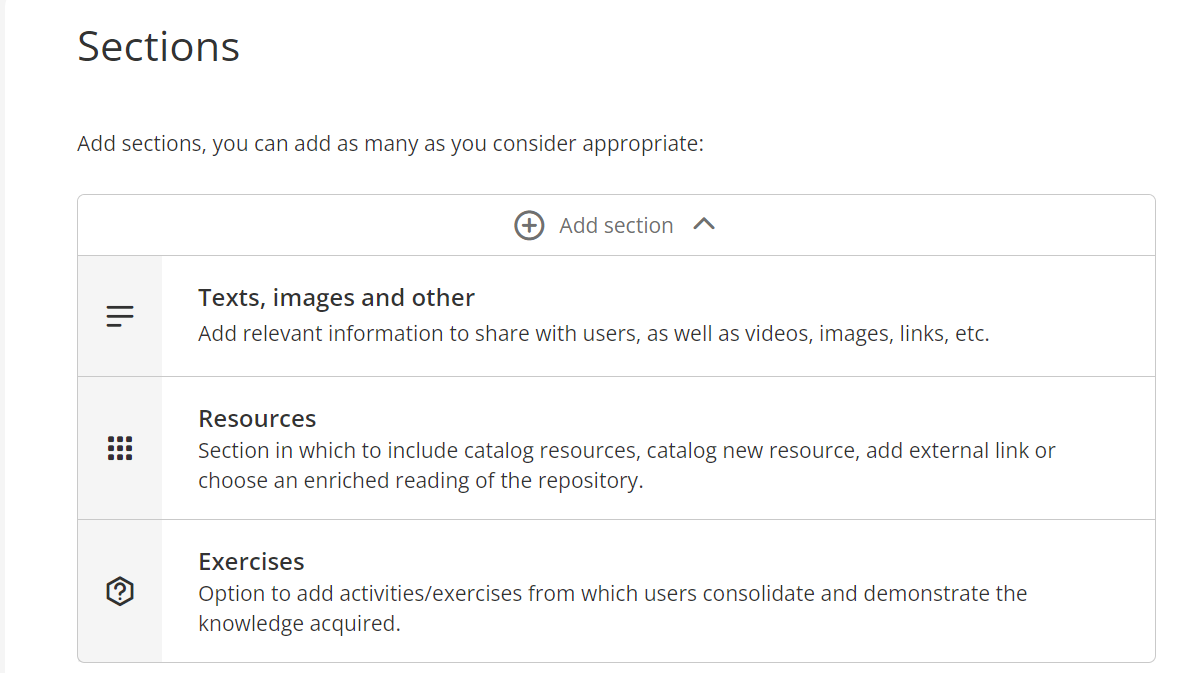
Text section
By selecting the option “Text, images and others” your new section will be displayed. Add a title for this section and then include the information within the description section.
- Text.
- Images.
- Videos from Youtube (Click on the button
 and paste the video URL).
 - External Links.
- Insert “Iframe” elements (
 from this button, paste the link to insert the element).
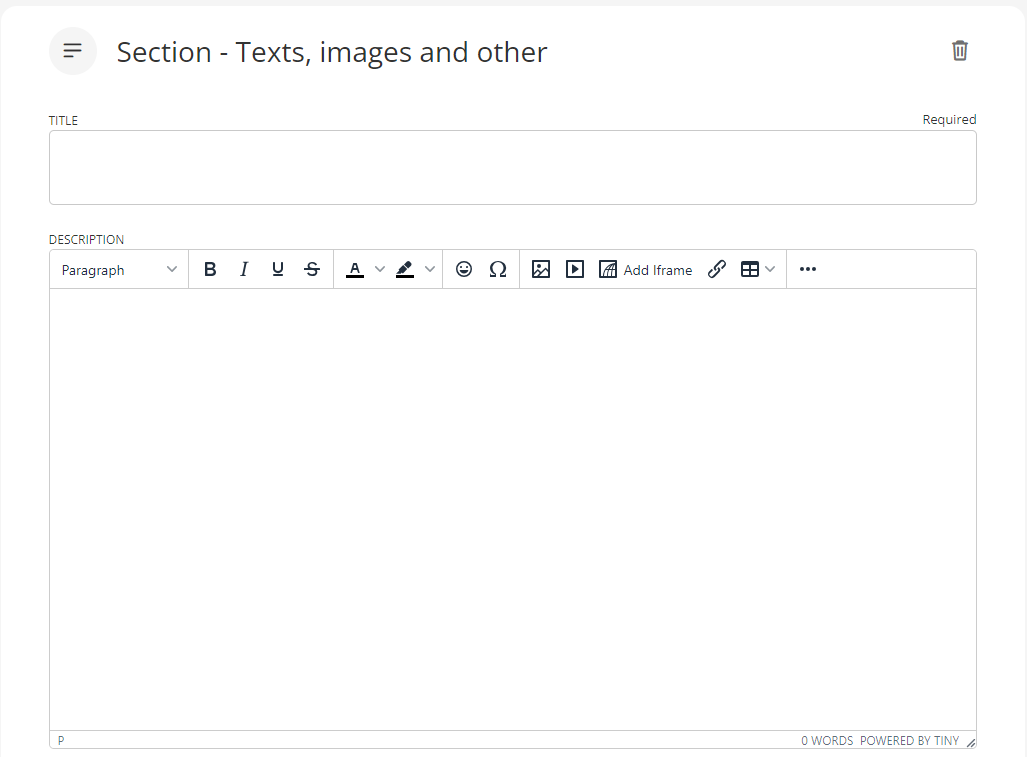
Check the following video: Add a text section.
Resources section
You will be able to directly add: resources from the Learning Ecosystem catalog, your own resources that you want to catalog in your experience and even add external links. Users will enter directly to these resources according to the itinerary you have established.
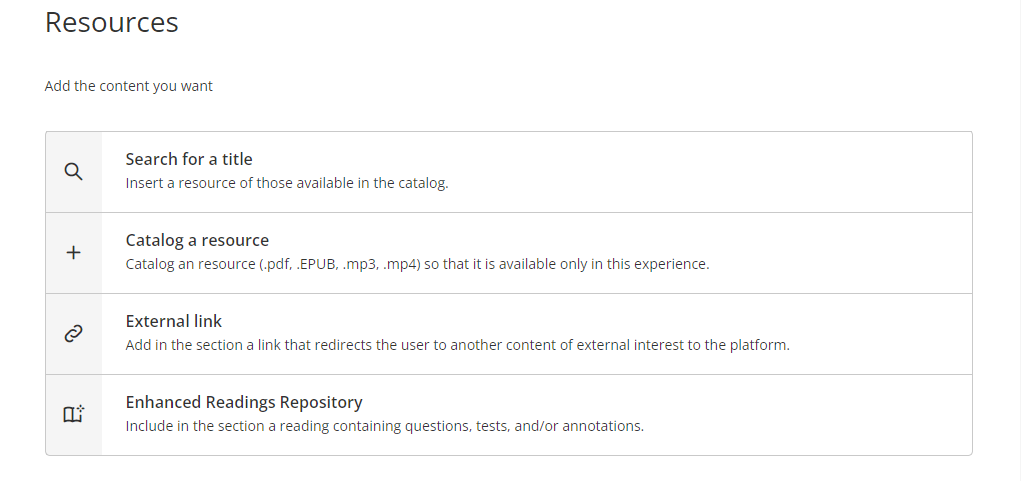
Add the content you want by choosing from the following options:
- Search for a title: Search for content from the Learning Ecosystem’s catalog by typing the name of the resource in the search bar. Then, if you wish, you can choose the dates on which that content will be available to the user.
- Catalog a resource: Upload your own content to the lessons through this option. To do this, complete the information, title, author, synopsis fields and then import the desired resource from your computer (supports pdf, mp3, mp4, epub formats).
- External link: Add a direct link to other websites within your lessons. When you click on this option, complete the required information and then paste the desired link in the URL section.
- Enhanced Readings Repository: Add already enriched readings from the repository to your lesson. To do this, write the title of the content you want in the search bar. To review these enhancements, click on the name of the resource and a pop-up window will show you information related to the content.
Exercise section
Watch the following video to learn how to create exercises.
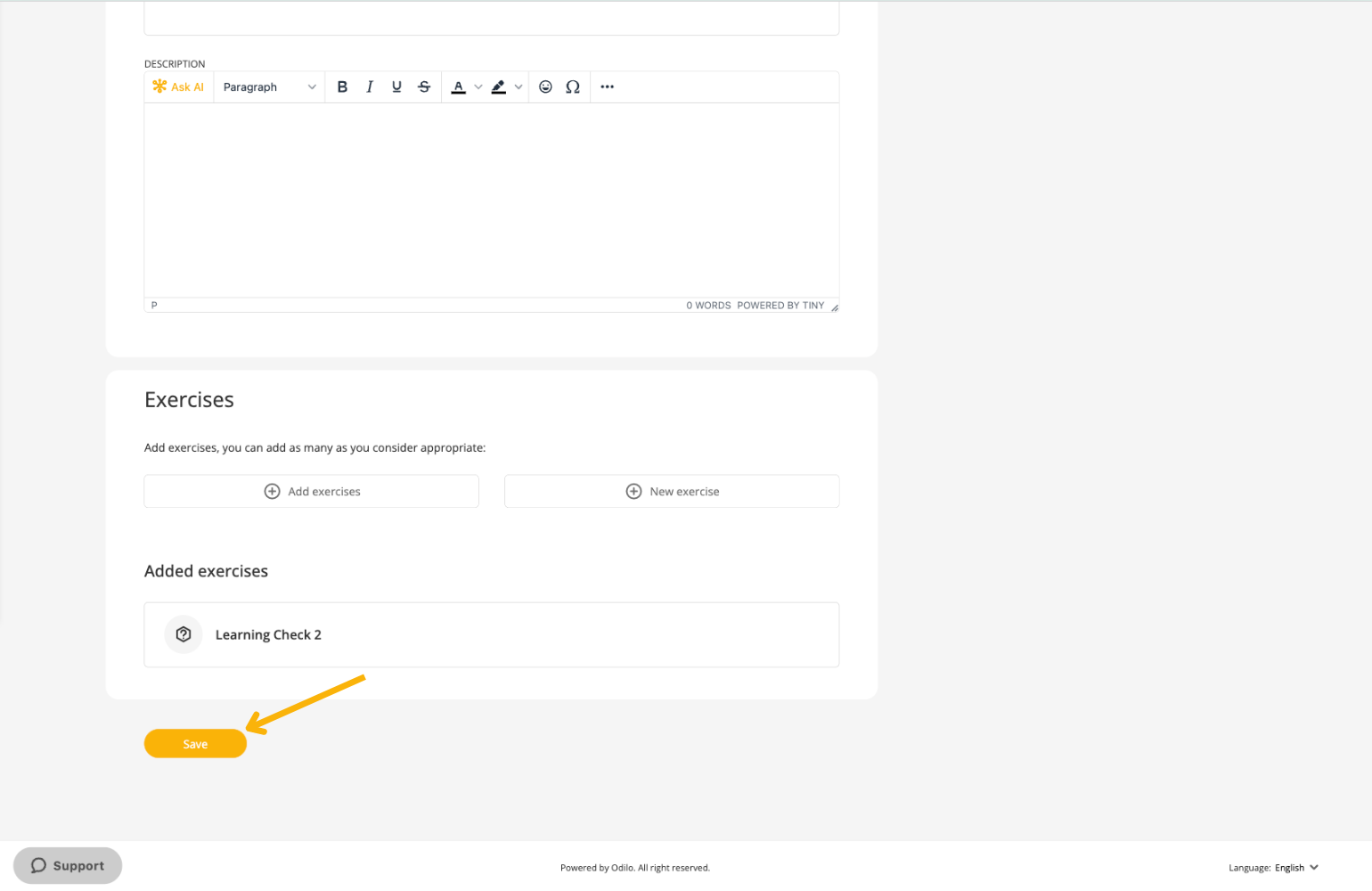
To add an exercise to your lesson, add a section title, add a brief description, and then add the exercise.
You can add exercises in 2 ways, depending on your needs:
- Add exercises: Your platform allows you to create an exercise bank from the “Exercises” tab, which you can set independently and at any time. You can include any of these exercises in your lessons directly in the section.
- New exercise: If you haven’t set up your exercises bank, you can create new exercises on the go, directly from your sections by clicking “New exercise” you can configure it.
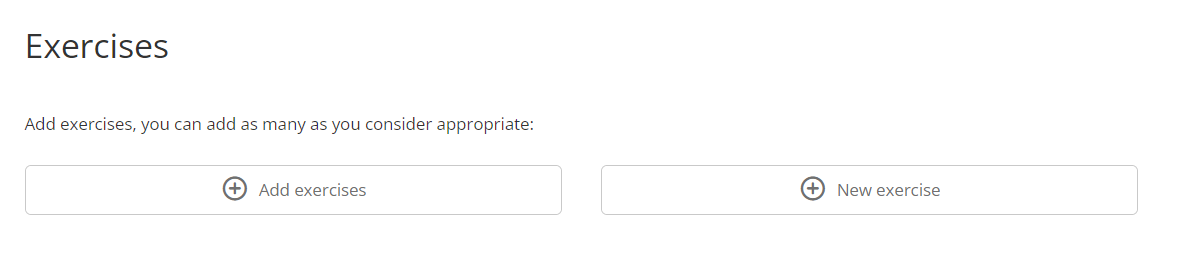
When creating a new exercise, a form will open where you will need to complete the required fields. You can configure your exercise for 1 to 100 attempts, allowing users to retry if they do not achieve the expected score. By enabling this option, you can set a minimum passing score for the exercise, so the user will only be able to submit it once they achieve the minimum score.
When selecting a start and end date, users will only be able to access and interact with the exercise during these specified dates.
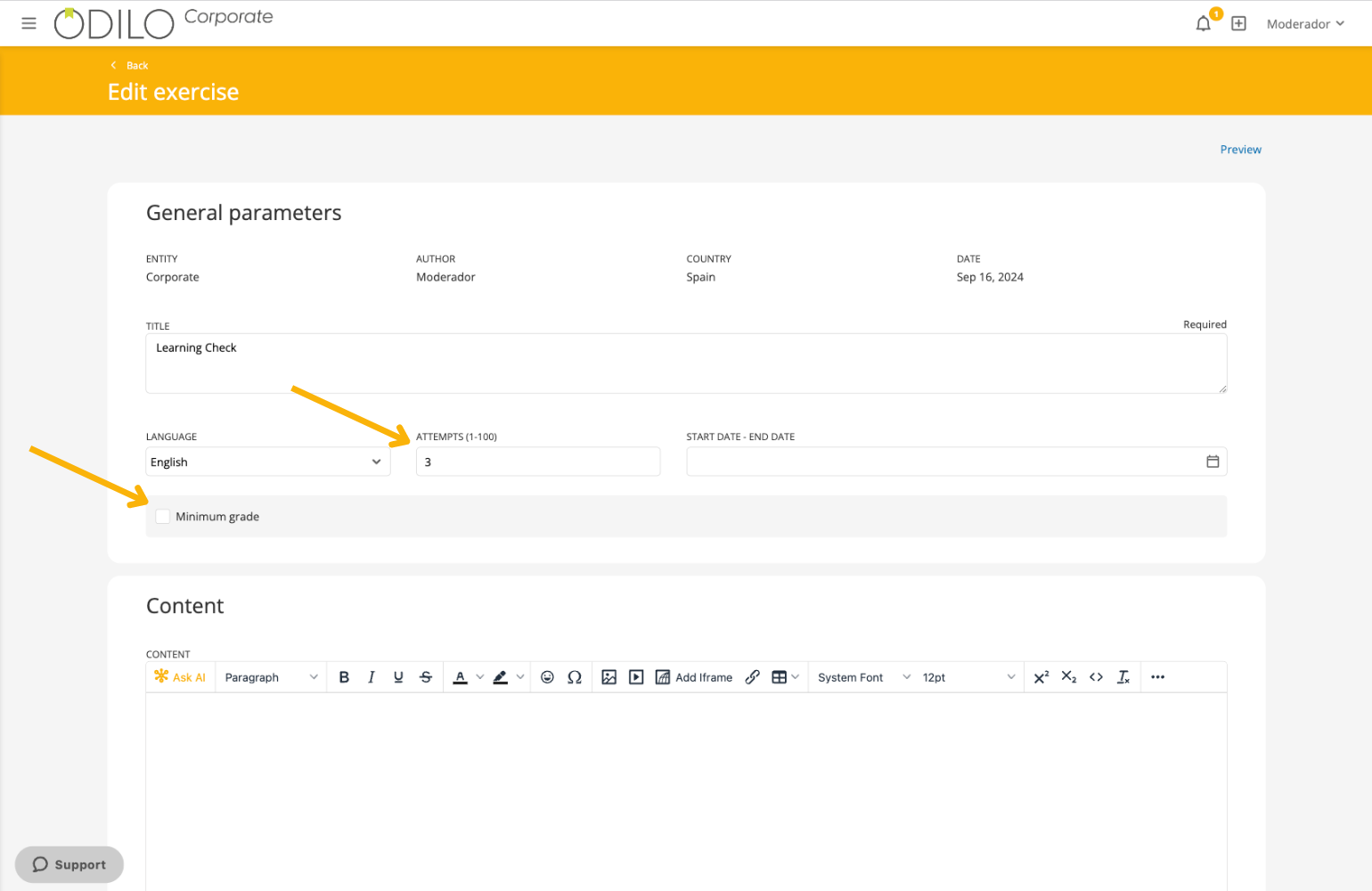
Additionally, from the “Grades” section, as a moderator, you can reset the exercise to give the user another chance to complete it if they fail to meet the minimum score.
Click “Add questions” within the exercise to choose from different question types, including automatically graded and manually graded questions.
Available options include True/False, multiple-choice, ordering, and matching questions, among others.
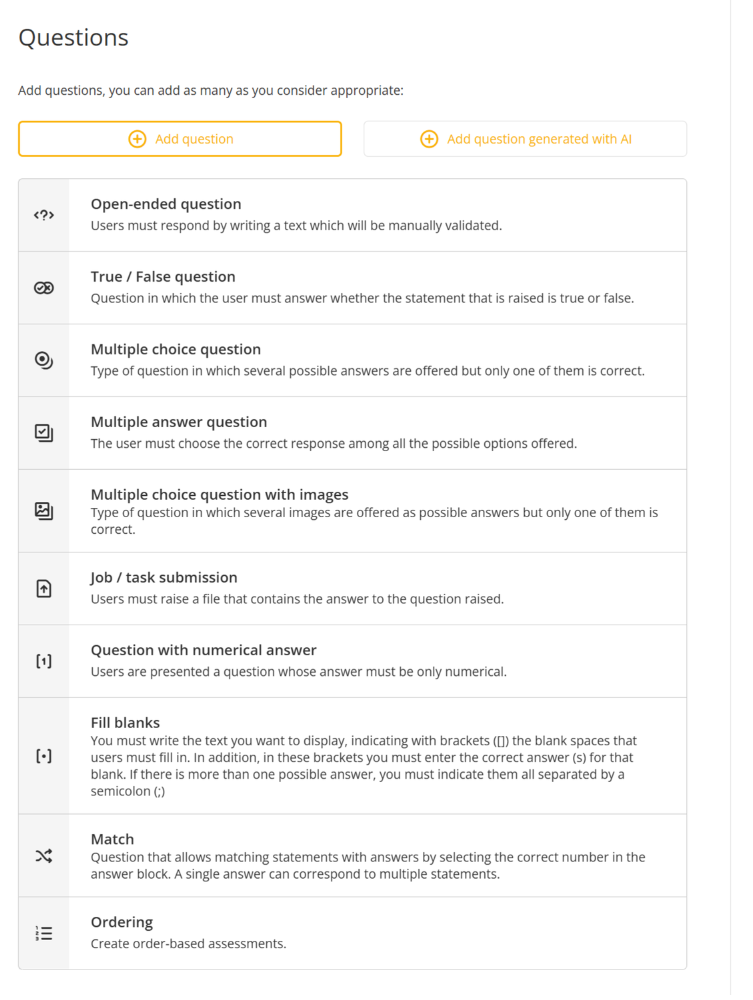
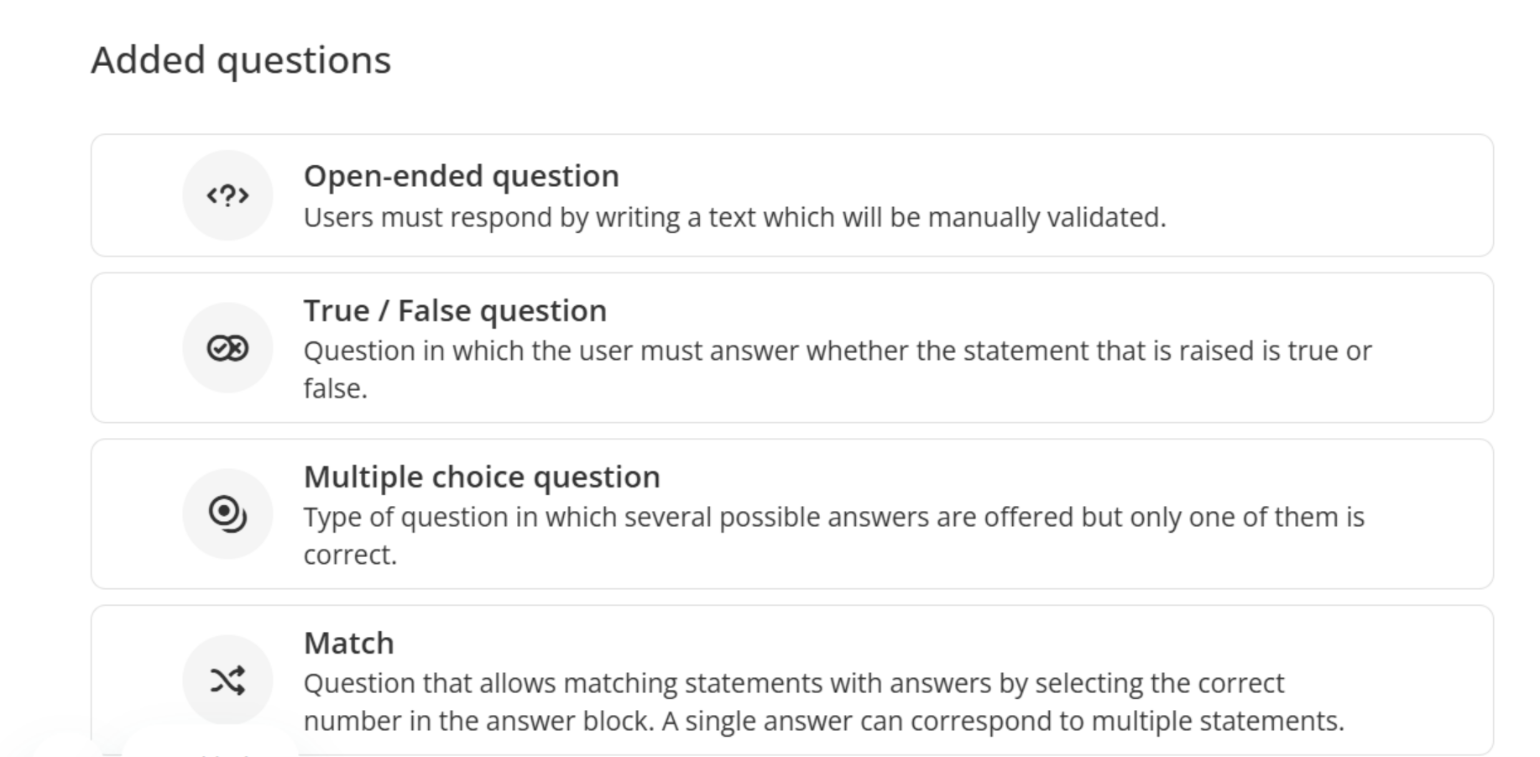
Configure each question and save it. The questions you create will appear at the bottom of the page, and you can add as many questions as needed within the same exercise.
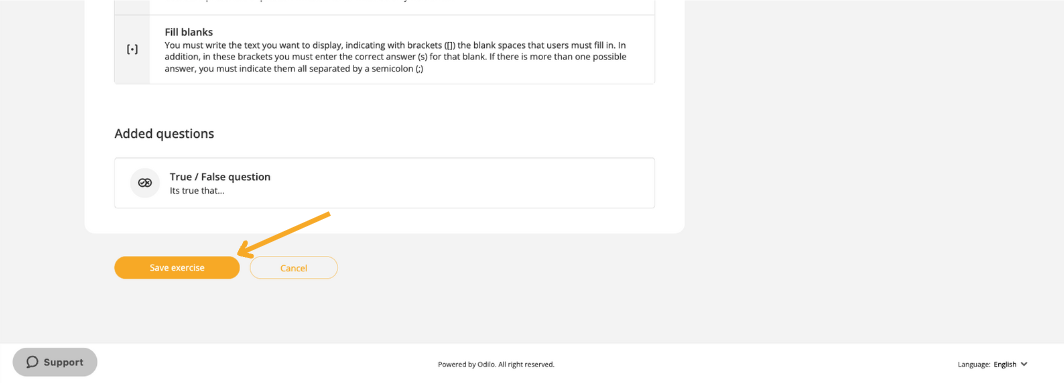
Save your exercise, then save your section.
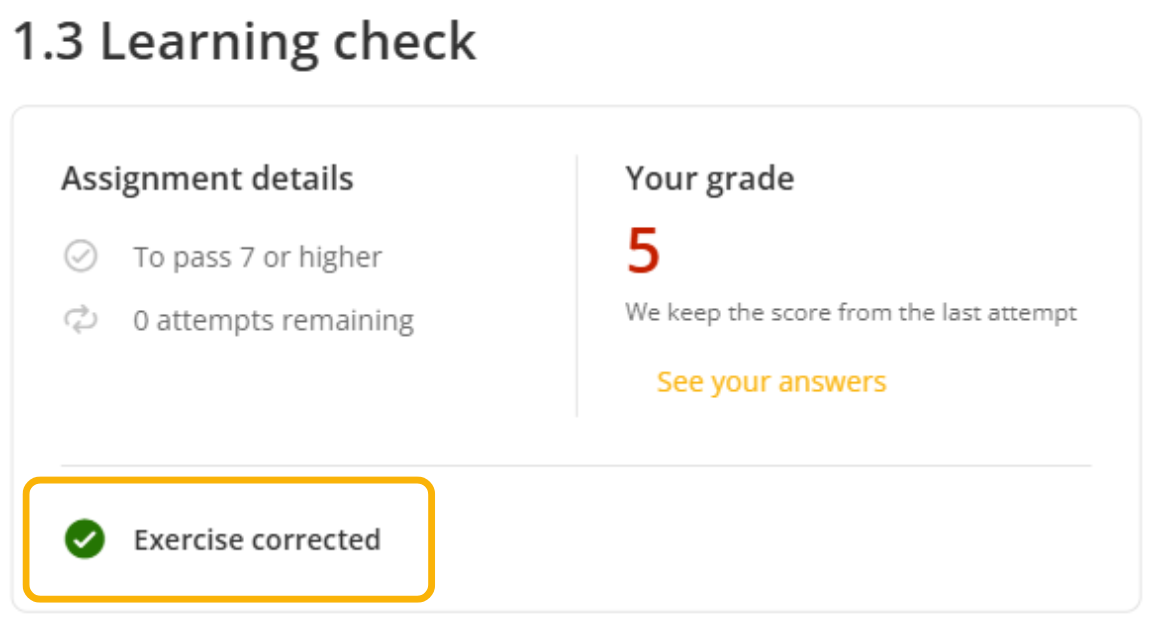
As a moderator, you will have access to manual correction, only, of questions classified as “Job/Task submission”, “Open-ended question”. Later, you can review the responses of the participants and enter their grade from the “Grades”. The rest of the exercises will be graded automatically according to the answers you have established.
Exercises with multiple attempts
If an exercise allows more than one attempt, the user must click “Complete and continue” within the exercise for the submission to be graded.

For exercises that allow multiple attempts and require a minimum passing grade, the user needs to reach that score in order to submit the exercise. If the required grade is not achieved, the “Complete and continue” button will not be available.
When all available attempts are used, the answers from the last attempt will be submitted, whether or not the minimum grade has been reached.
Create from scratch: Open Community Learning Experience
Before you start creating
When selecting the content you will share with participants, keep the following in mind:
- Review the content using “Preview” to make sure it aligns with the topic and learning objectives.
- If you add resources from your catalog, prioritize those that allow simultaneous access to avoid usage limitations when multiple employees access them at the same time.
- Keep in mind that the Open Community template is designed as a space for interaction between participants. It does not include exercises or grades. Its purpose is to facilitate discussions, share resources, and encourage collaborative learning.
Create an Open Community Learning Experience
1. Click “Create Learning Experience”, located below the first carousel.
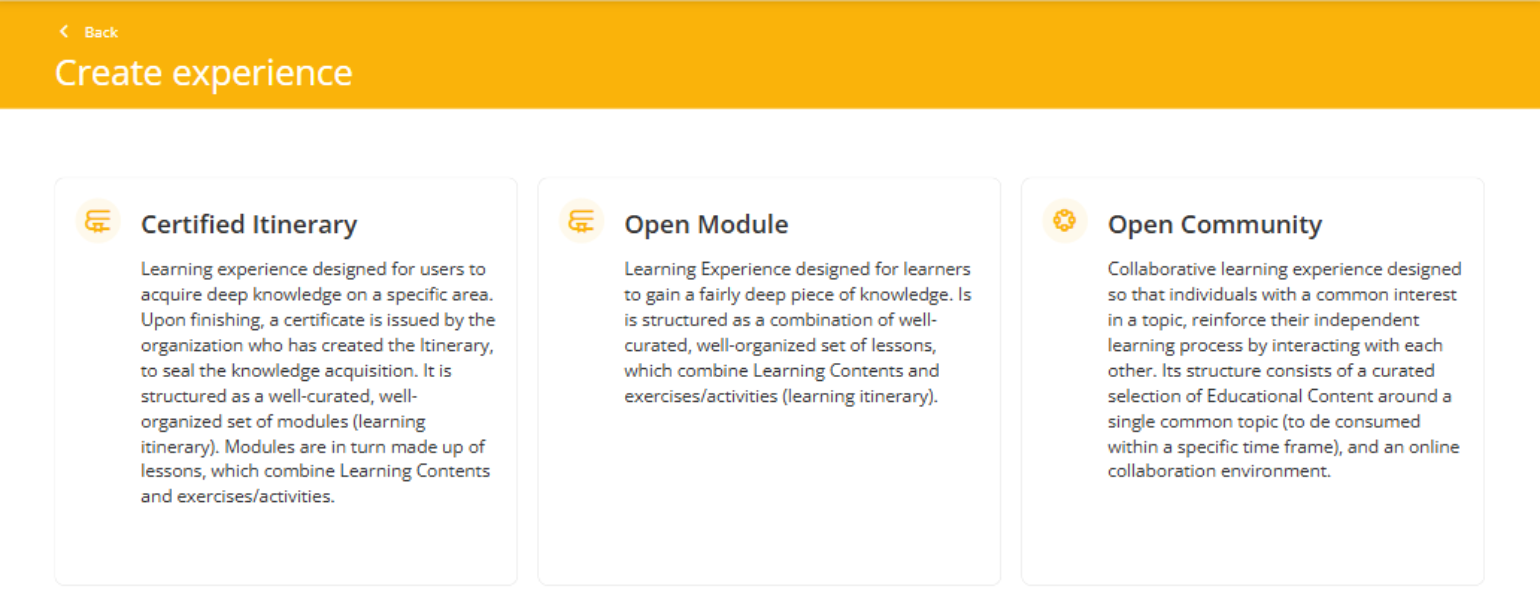
2. Select the Open Community option.
3. Choose From scratch.
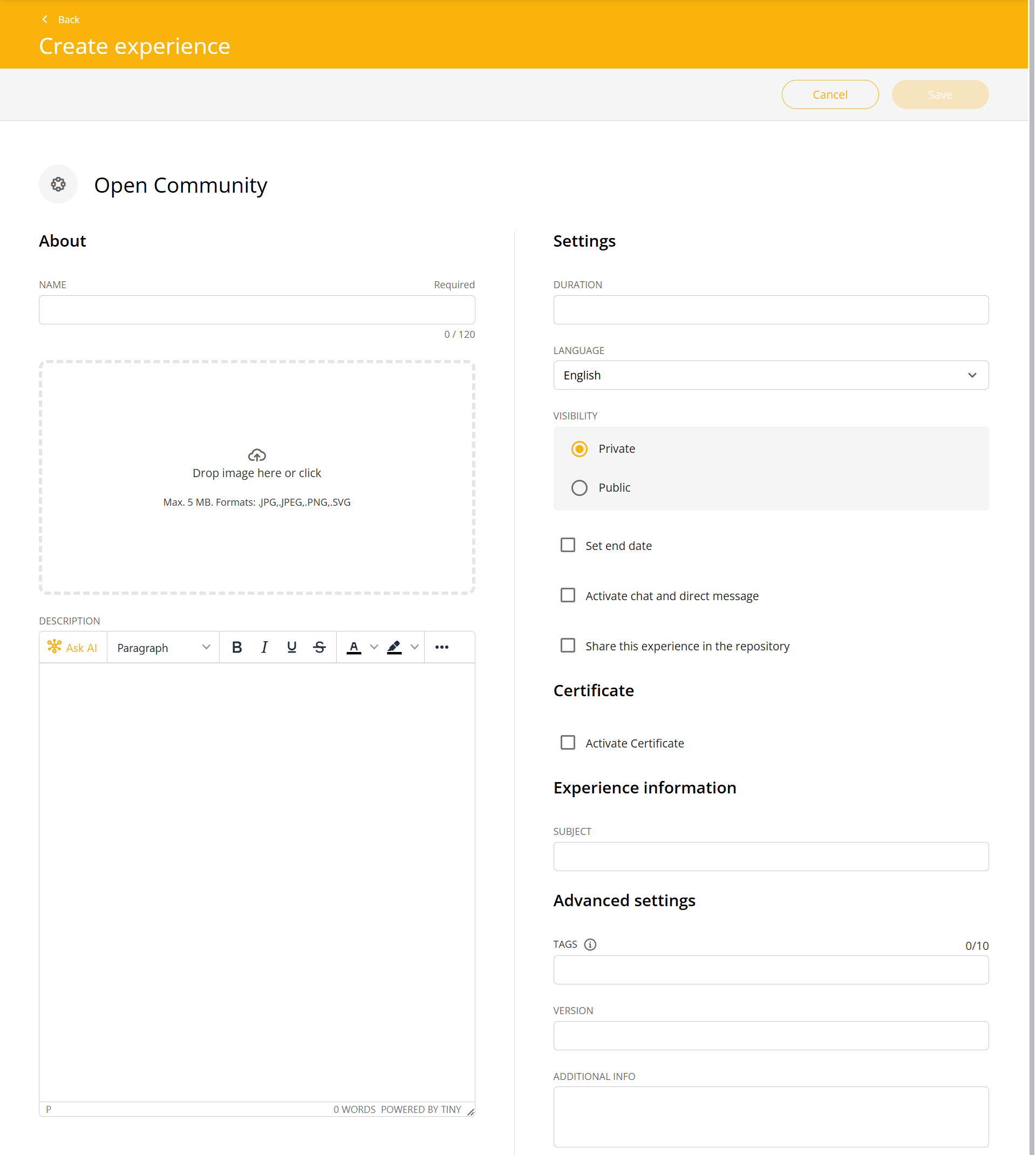
4. Complete the initial information
Fill in the fields, just as you would when cloning a Learning Experience:
- Name: Use a clear and descriptive title. For example: “Internal Communication – Best Practices,” “Trends 2025 – Community,” “Sales Team – Resource Exchange.”
- Cover image: Add or edit an image that represents the topic.
- Description: Describe the purpose of the community, the topics that will be covered, and the type of participation expected. You can add images, videos, tables, or embedded content if needed. This is the first information users will see when they access the Learning Experience.
- Language: Select the primary language of the Learning Experience.
- Visibility:
- Private: Access by invitation only. Statistics will be generated exclusively for the invited group.
- Public: Open access for any employee in the organization, with no invitation required. Statistics will include all participants.
- Set end date: There are two date configuration options:
- Completion time limit: Set the maximum number of days users have to complete the Learning Experience from the moment they join.
- Set start and end dates: When start and end dates are defined, users will only be able to interact with the proposed resources or activities during that period.
- Chat: Enable or disable the chat option depending on the level of interaction you want to encourage.
- Share in repository: Enable this option if you want other moderators to be able to clone and reuse your Open Community Learning Experience.
- Certificate: You can enable a certificate to be awarded upon completion of the Learning Experience by setting the delivery date and the passing grade. Users will be able to download it and will also receive a link to add the certificate directly to their LinkedIn profile, if they wish.
- Additional fields: Add any complementary information according to the needs of the project.
Important: All fields can be edited at any time after the Learning Experience is created.
Add content to an Open Community Learning Experience
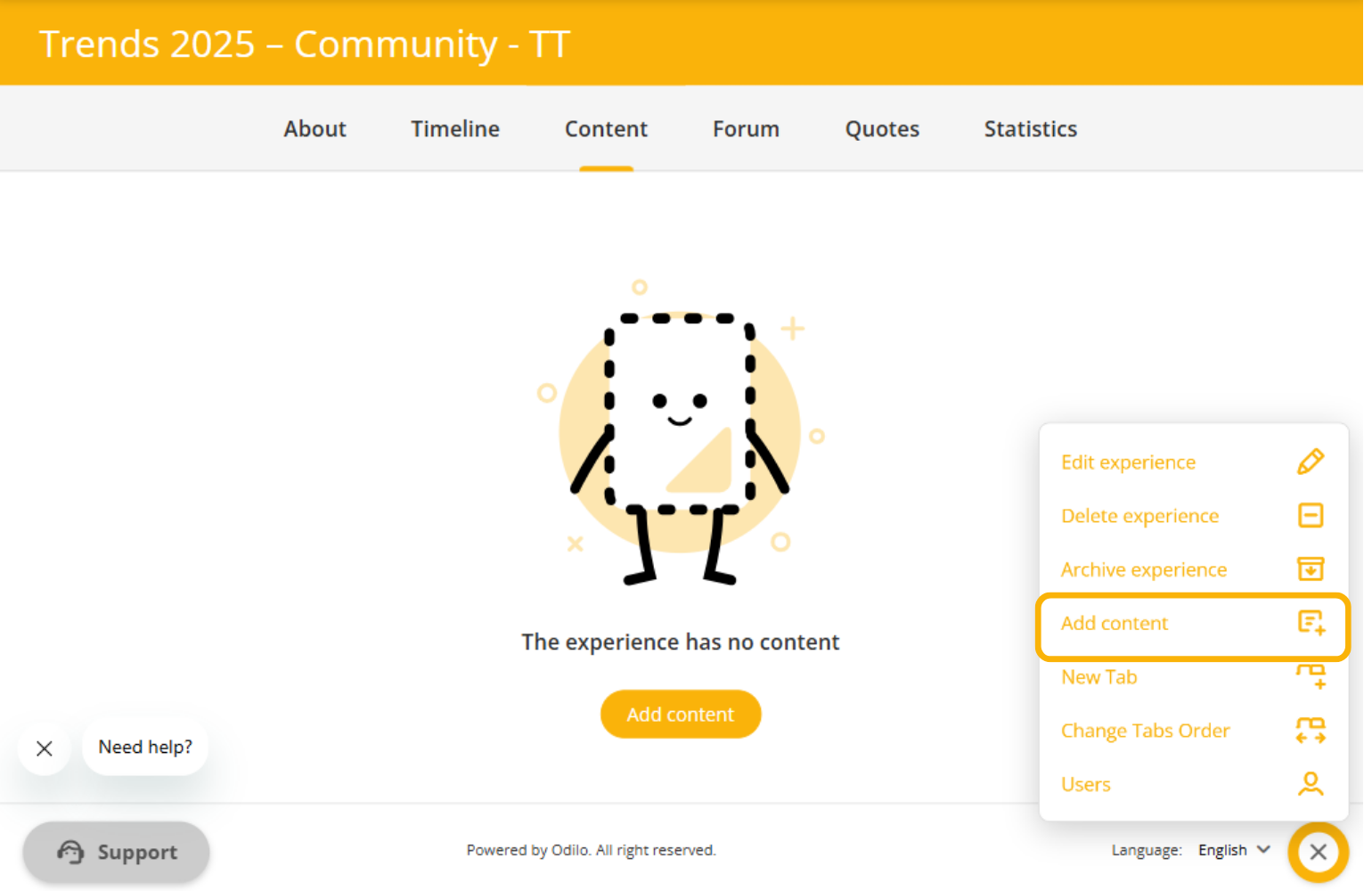
Once the Learning Experience has been created, use the editing button to add content in the available tabs located below the experience title.
Add content
1. From the Content tab, click “Add content”, located in the center of the screen. You can also access this option from the button in the bottom-right corner.
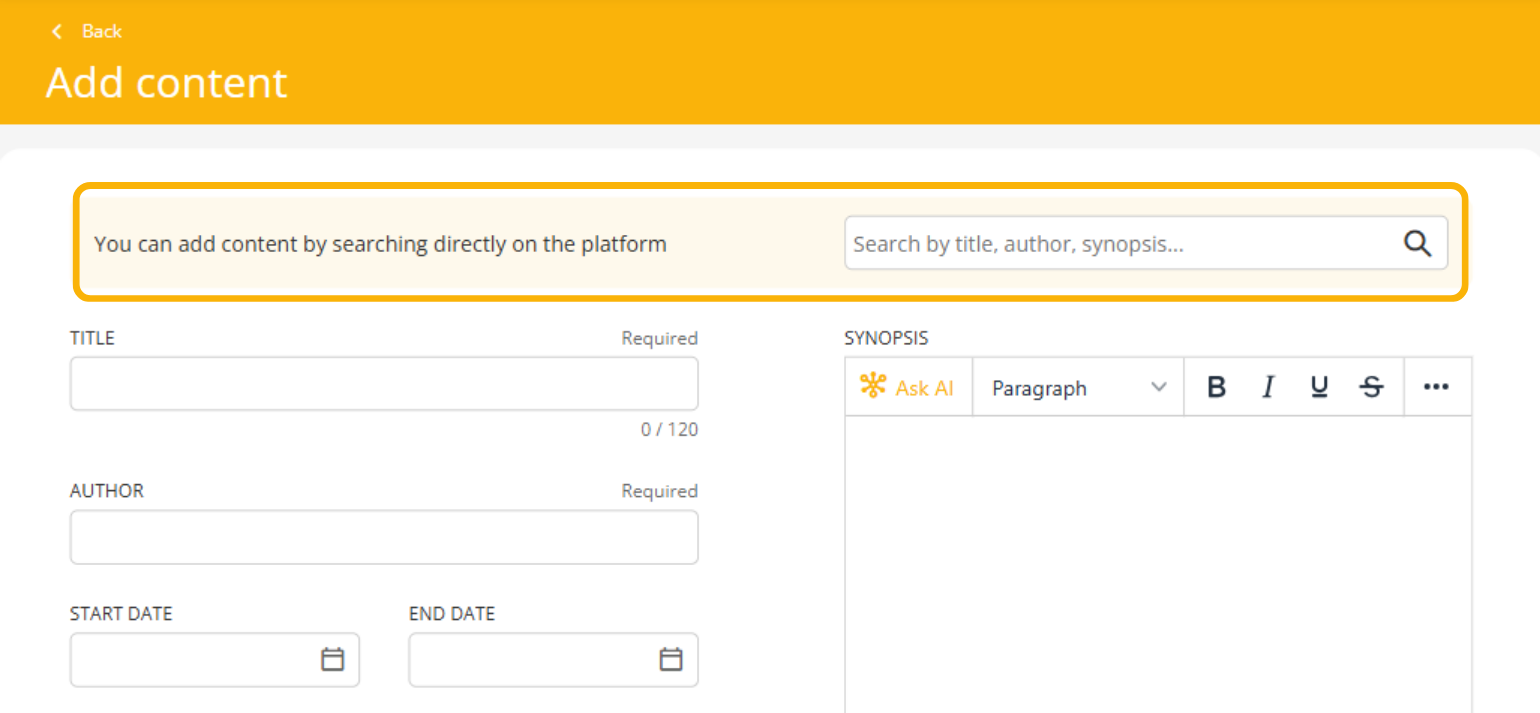
2. You can add:
- Content available in the Learning Ecosystem catalog.
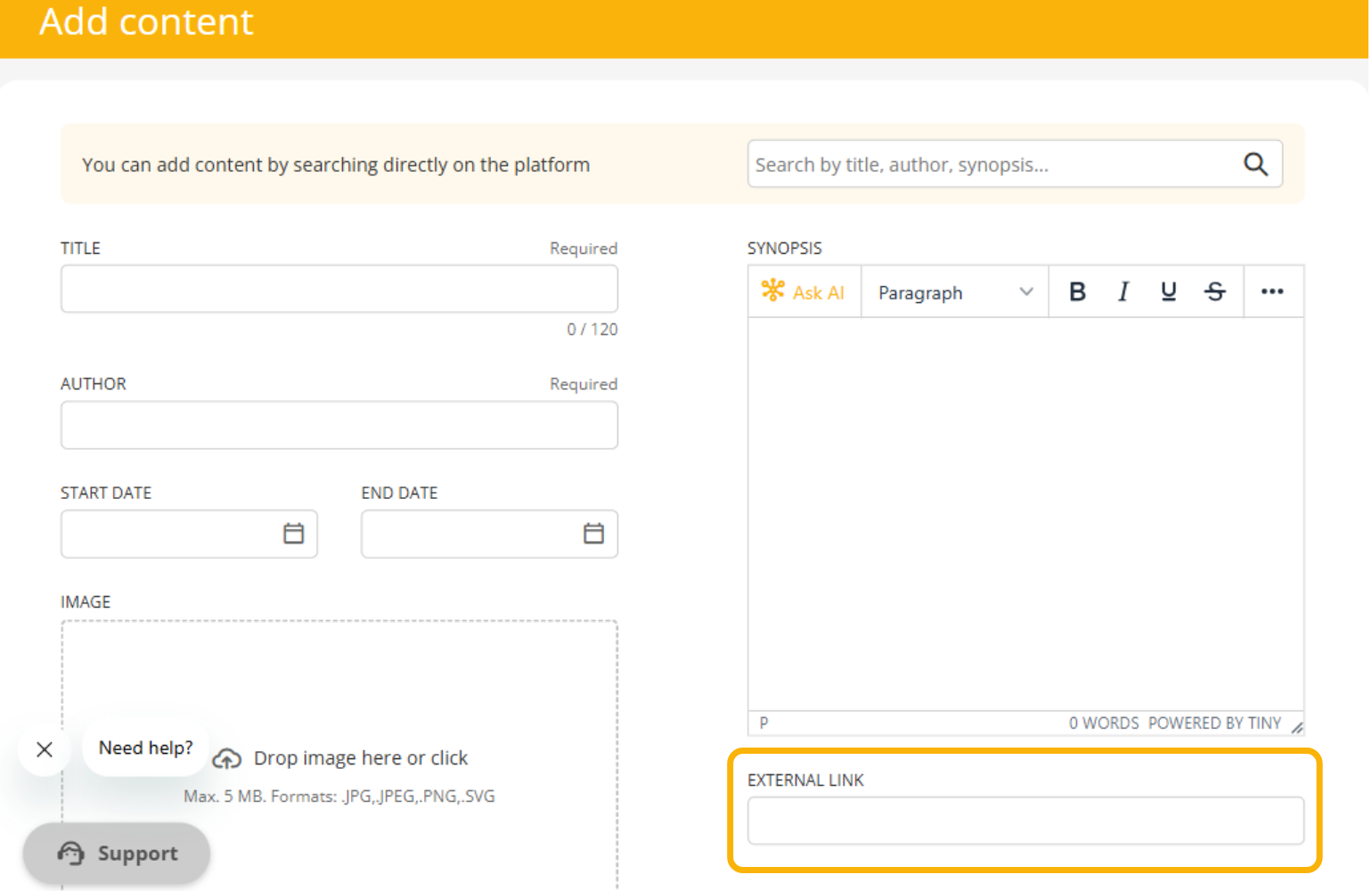
- External links, such as internal documents, relevant articles, corporate videos, internal reports, or resources from the web.
If you add content from the catalog:
- Find it using the search bar.
- Prioritize items labeled “Recommended”. These resources have unlimited copies, allowing all participants to access them simultaneously.
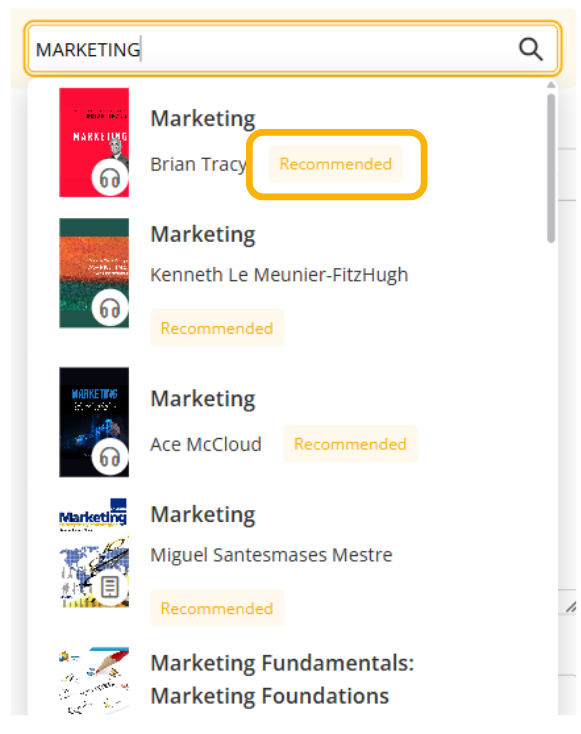
- The system will automatically complete the Title, Author, Description, and Cover image fields.
- Optionally, select start and end dates for the content and save your changes.
If you add external content:
- paste the corresponding link in the “External link” field. You will need to manually complete the Title, Author, Description, and Cover image fields.
Clone a Learning Experience
In the following video, you can see how to clone a Learning Experience:
You can find Learning Experiences available for cloning only if you or another moderator from your organization checked the box to share them in the repository during the initial setup of an Experience. By cloning an experience you will be simply creating a copy version, to easily reuse and adapt it to your needs.
To clone any experience, click the “Create learning Experience” button that is located under the first carousel.
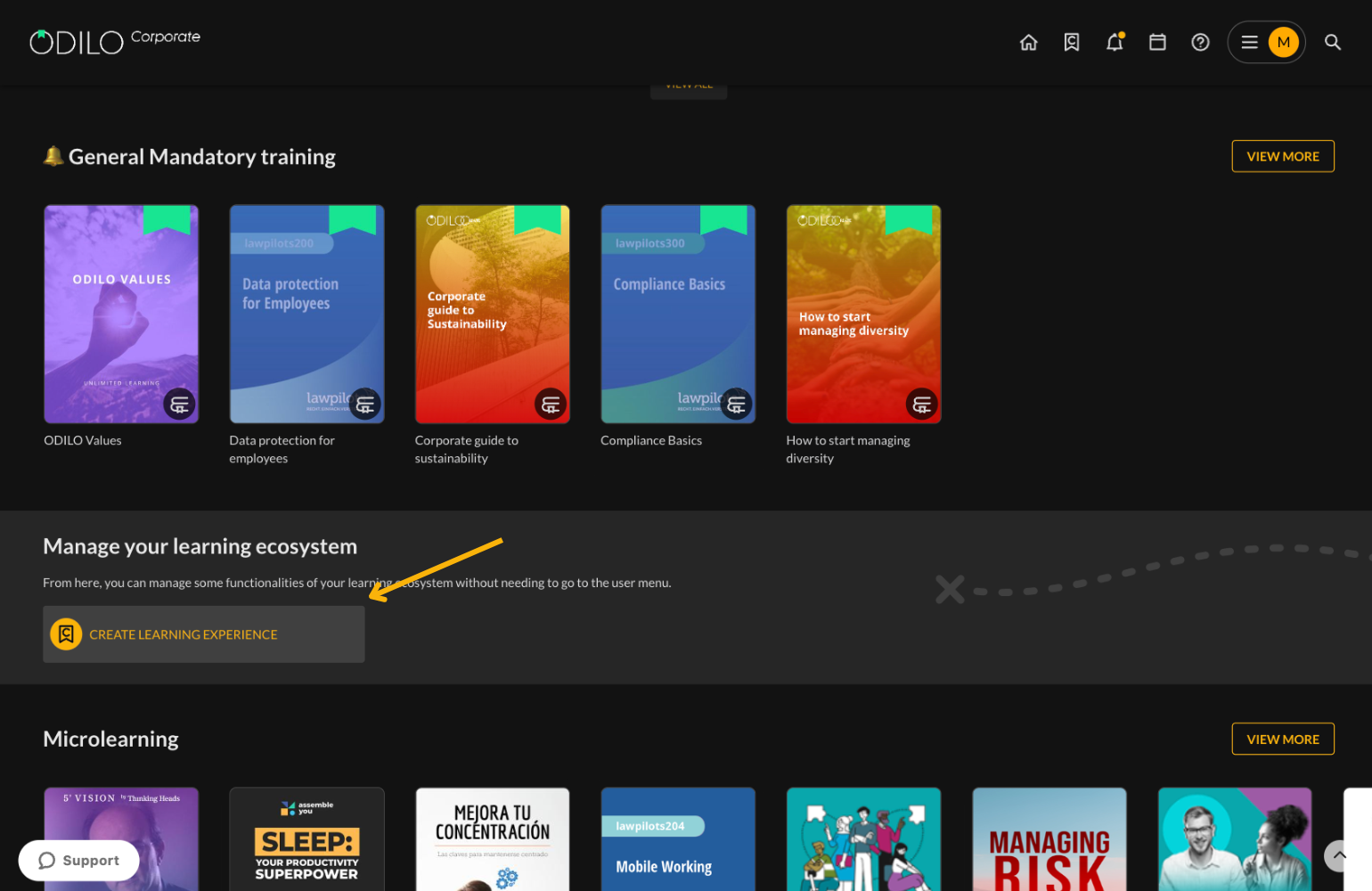
* If you do not see the button, access your user area, select “Learning experiences”, click “go to learning experiences” and re-enter your Learning Ecosystem.
Choose the type of experience you want to clone by clicking on it. You will be able to review a brief summary of the types of experiences under each of them.
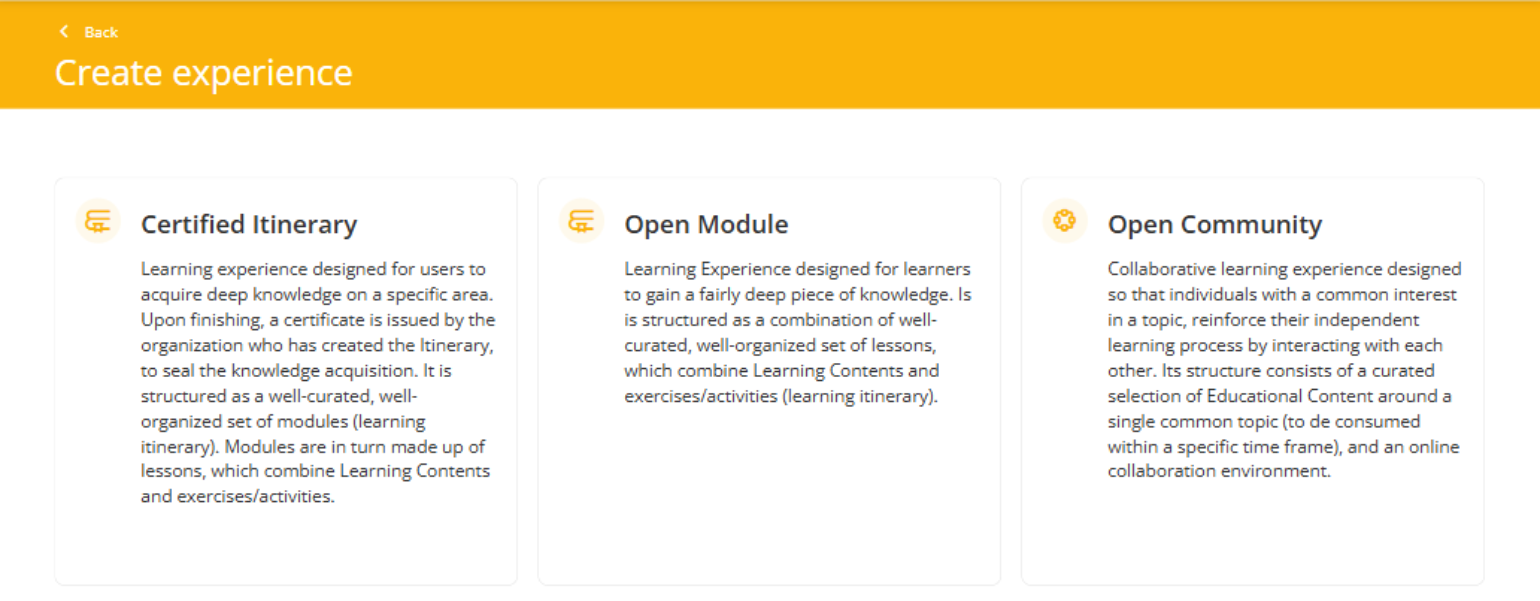
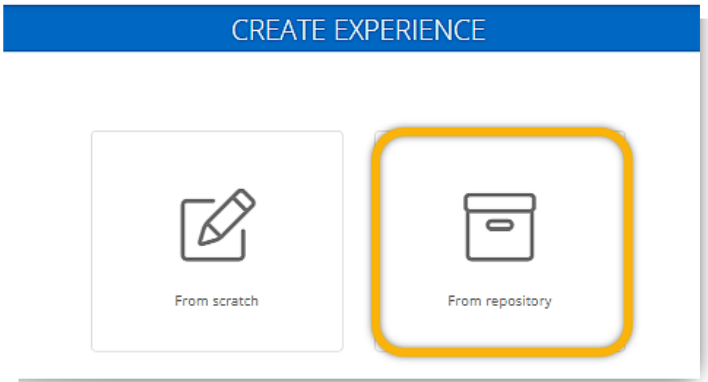
Choose the option “From repository”, this will show you all the options available for cloning.
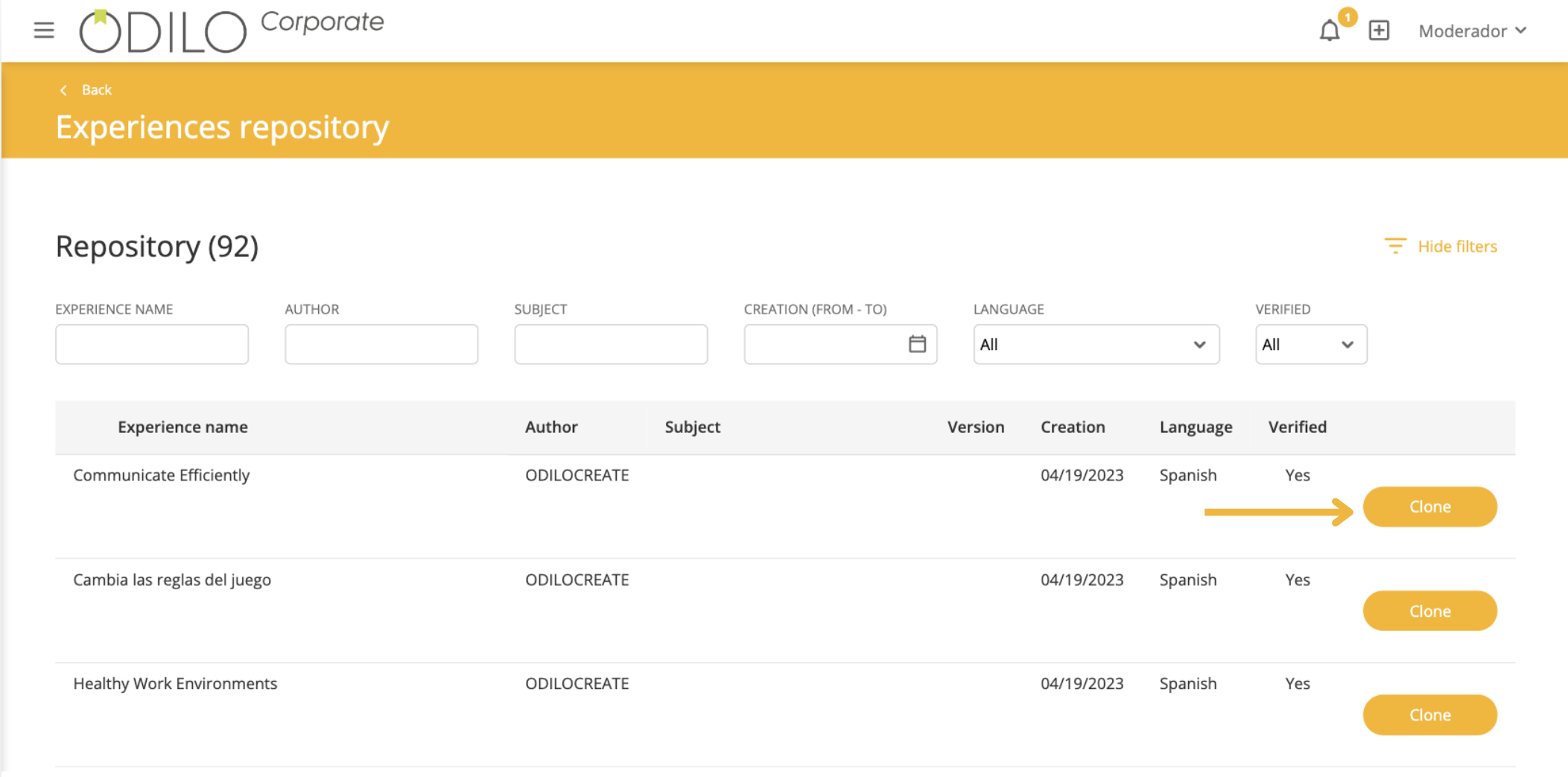
To perform a more precise search, you can filter by name, language, author or date using the filter button at the top right “Show filters”.

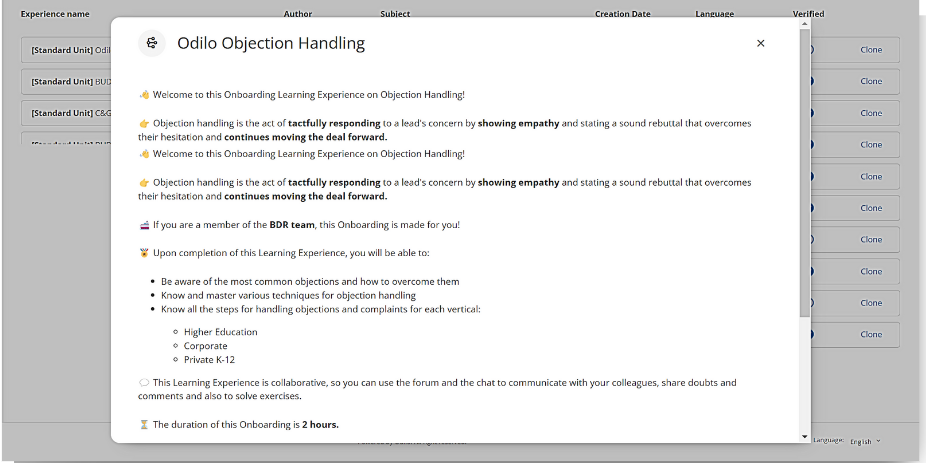
If you want to know the topic and contents found within an experience, click on its name to preview it.
Clicking “Clone”, you can begin to set your experience, indicating the information in the required fields.
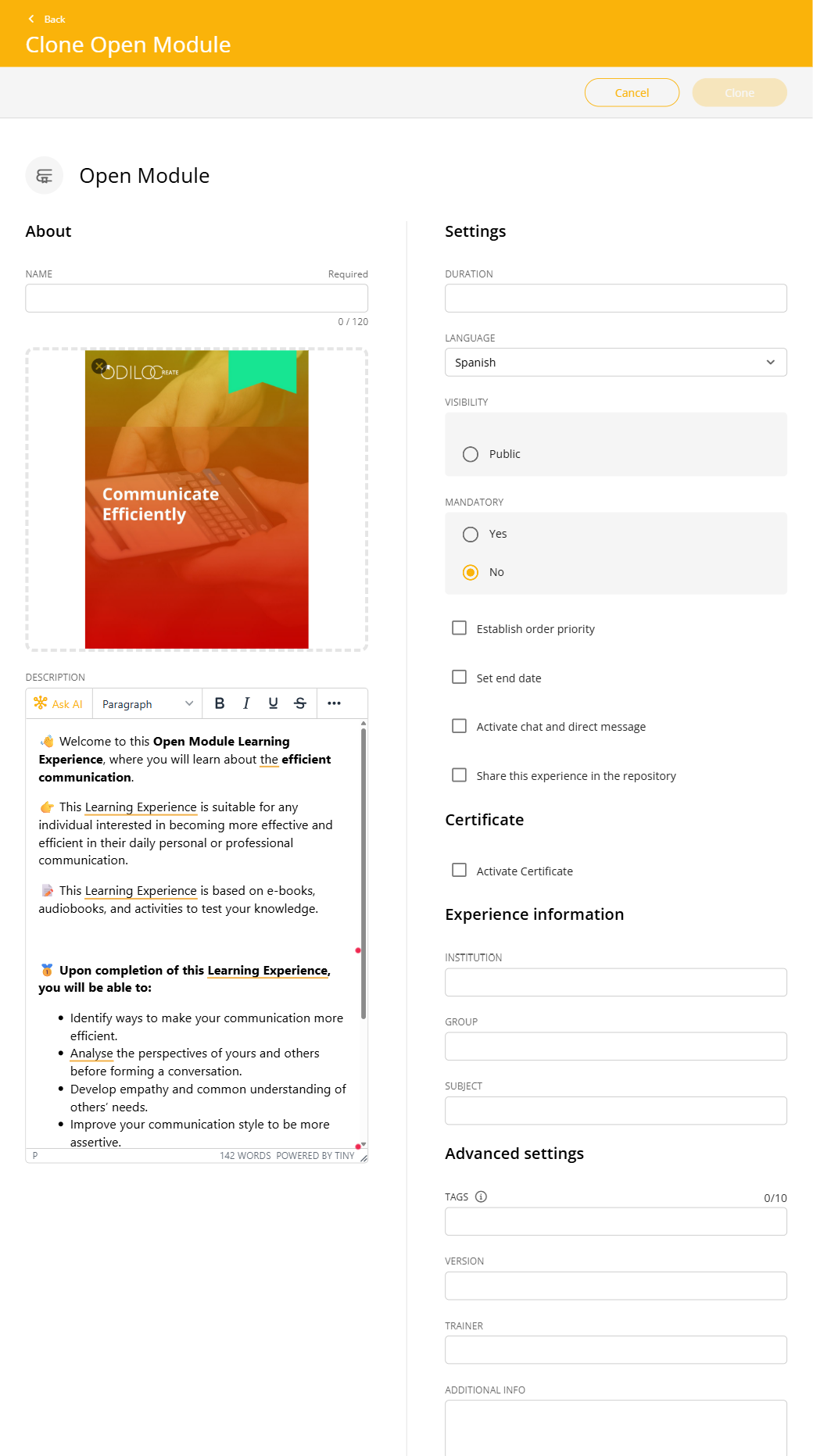
Name: It is recommended to name the experience precisely to be able to quickly identify it, for example: Topic, level and the name of the person responsible for the experience.
Cover: You can edit the image by clicking on it (clone will take an image by default).
Description: It will already be available in the corresponding section, however, you can edit everything you want from the text area. You can add images, graphics, videos or embedded elements. This will be the first thing users see when they access an experience.
Language: Choose the desired language.
Dates: By selecting the start and end dates, users will be able to access this experience only in that time period.
Visibility: Public experiences will be accessible to all members of the organization without the need for an invitation. Private experiences are preferable when working with specific groups. Participants will need an invitation to join them.
Mandatory: By designating mandatory, the user must complete each section and exercises in this Learning Experience in order to finish it and submit their work.
Set End Date: There are two options to configure this setting:
- “Set start and end dates“: Defines a mandatory date range for users to complete the Learning Experience.
- “Limit days for completion“: Sets a specific amount days to complete the LE within the given date range.
Important: If the Learning Experience is set as mandatory, an end date must be assigned.
Chat: As a moderator, you can activate or deactivate this tab at any time.
Share in repository: Enabling this option will allow other moderators to clone your experience.
Certificate: You can enable a certificate to be obtained at the end of the experience, establishing an issuing date and cut-off mark. Users will be able to download it and will also receive a link that will add this certificate directly to their LinkedIn profile, if they wish.
Experience information: Additional data.
Once you have finished setting up your experience, click “Clone” and you will have your first experience created and ready to use.
Important: As a moderator, you will have an edit button within each experience that will allow you to edit its content. You can add tabs, lessons, sections or whatever you want at any time.