Track participant progress
In the following video, you can see the steps to track the participants’ progress in your Learning Experience:
Steps to know the evolution and achievements of the participants of an experience:
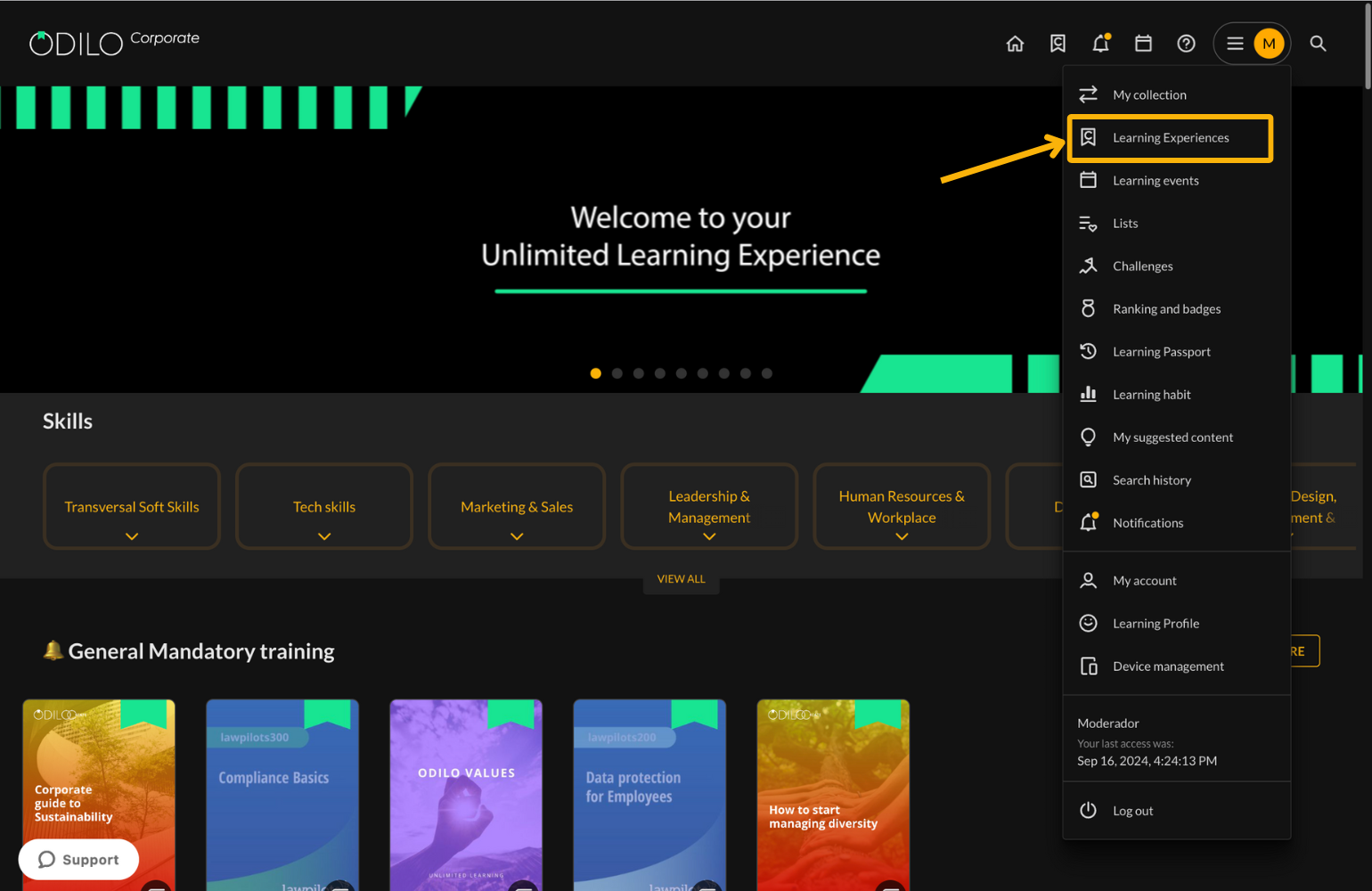
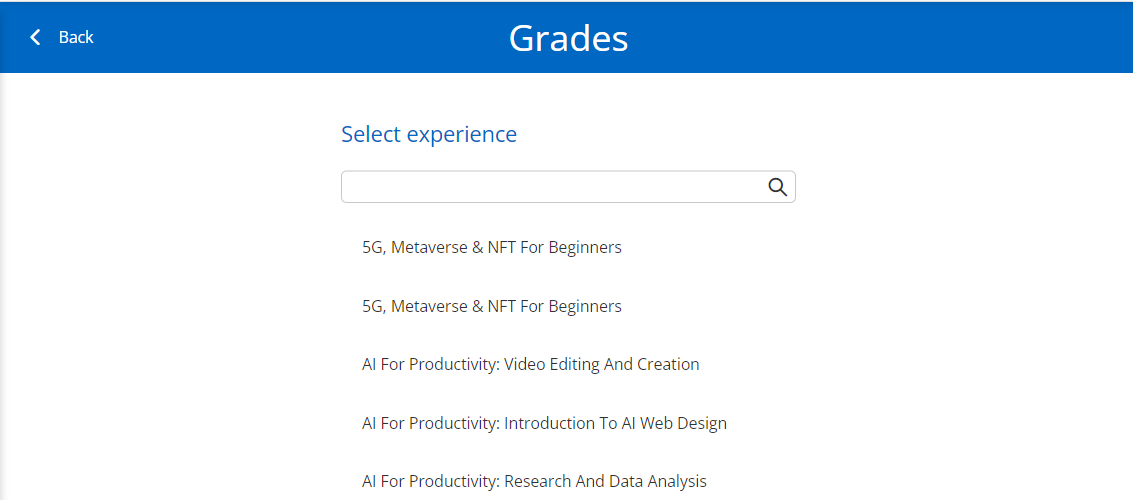
- Access your user profile and select “Learning experiences”.
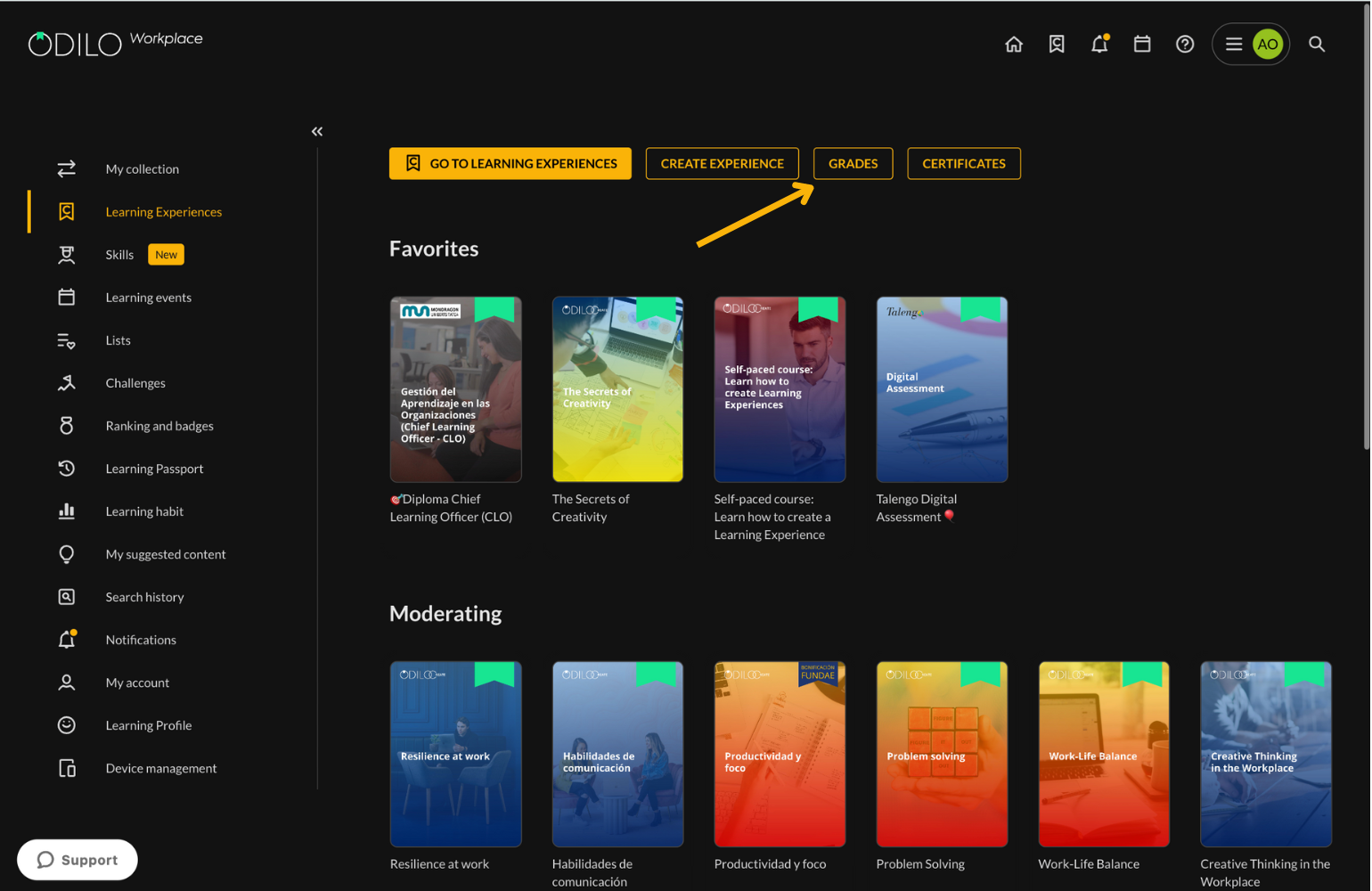
- Click “Grades” and use the search bar to find the experience you want to consult.
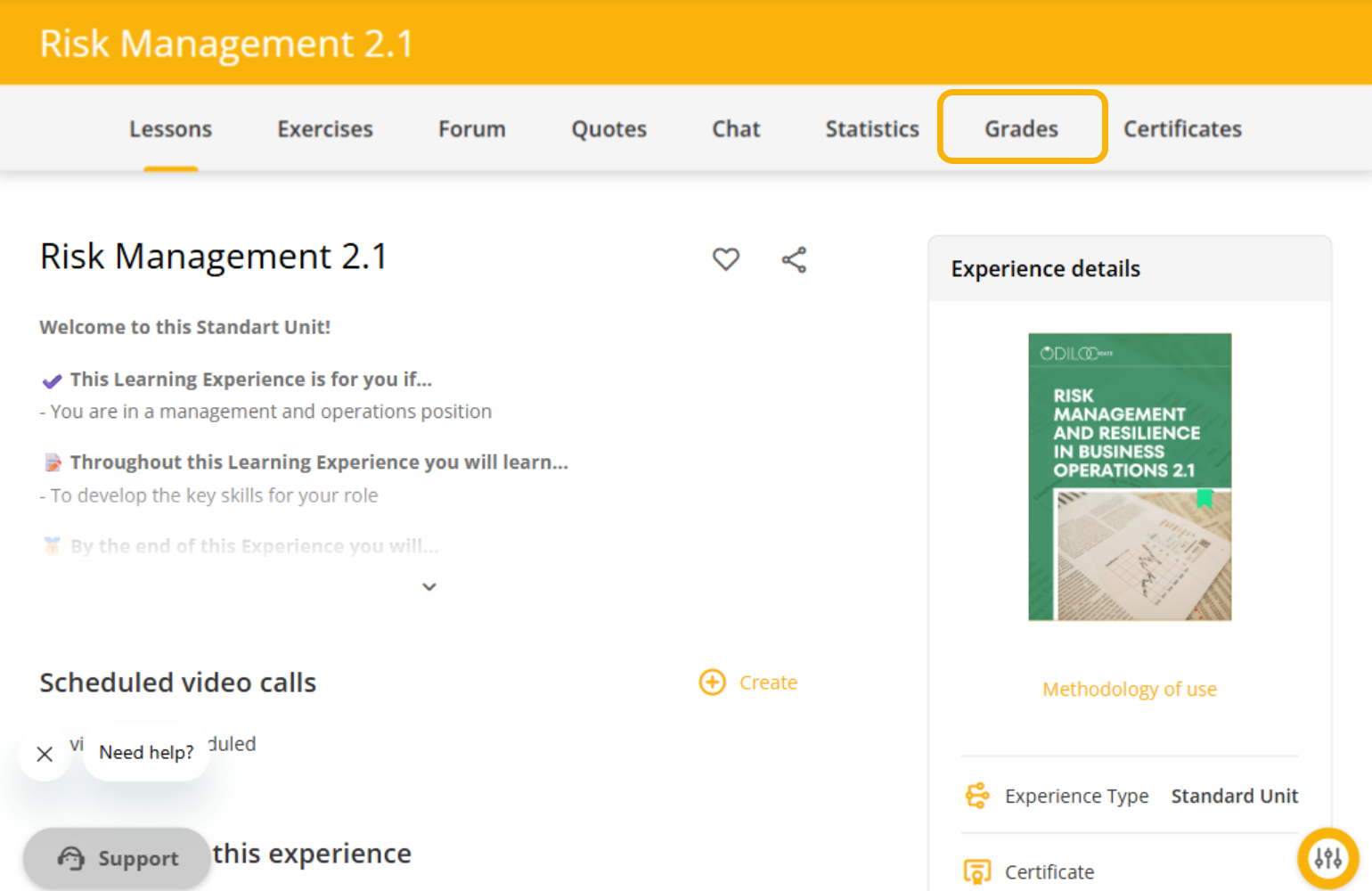
You can also view user grades from within the Learning Experience, in the “Grades” tab.
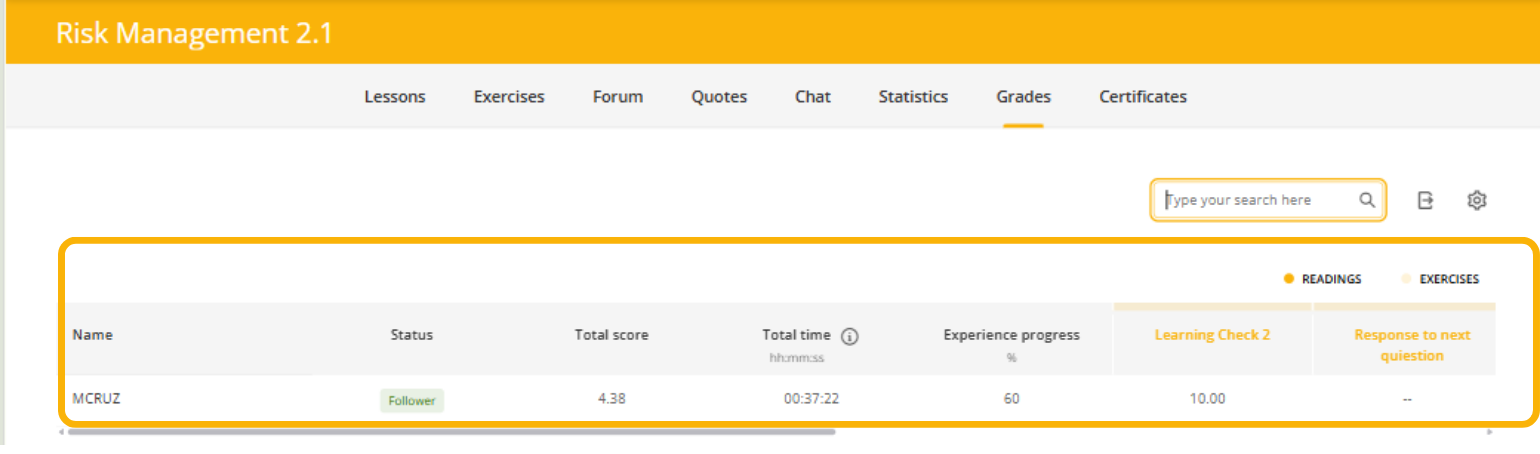
This section will show you:
- List of participants who are working on the experience in the side panel.
- To organize or search for assignments:
- Use the filters to view only readings or only exercises.
- Use the search bar to find a specific assignment.
- The “Status” column shows each participant’s situation within the Learning Experience, using the following labels:
- Follower: The participant is active and is following the Learning Experience.
- Not following: The participant has stopped following the Learning Experience.
- Invited: The participant has been invited but has not yet started following the Learning Experience.
This information helps you quickly identify each user’s level of participation.
- Resources and exercises included in the experience in the top panel.
- Total score based on the defined scoring percentages (you can adjust the percentages using the settings button in the top-right corner of this section)
 .
. - “Export” button (Excel or CVS spreadsheet of your experience tracking information)
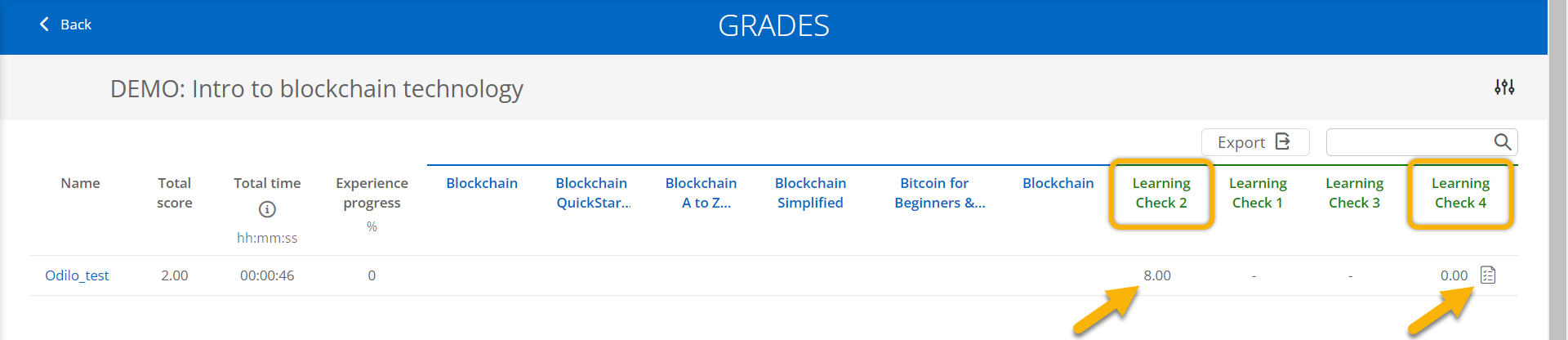
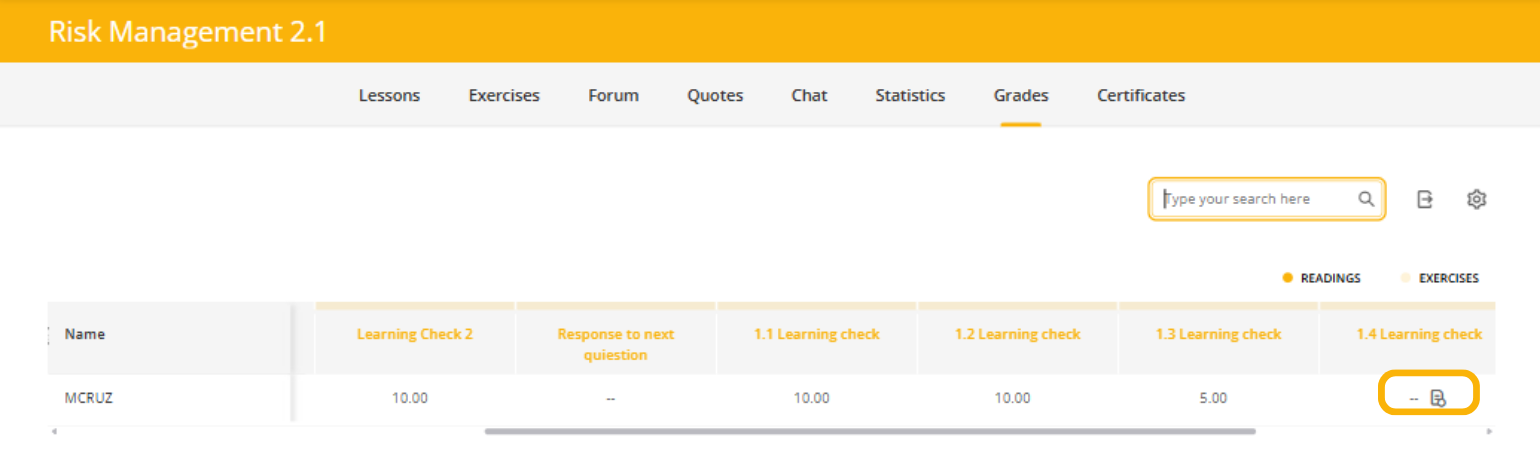
You will find automatic grading exercises, which score cannot be modified, and exercises that require manual grading , such as deliveries or open-ended questions.
* You will notice if an activity requires manual grading when your dashboard displays this icon  , indicating that an activity requiring grading has been completed and submitted by that participant.
For a detailed review of the activities or participants in your Learning Experience, click on the name of the content or exercise you want to review. This will take you to a panel for that specific activity, where you can click on the participants’ name to enter their personal panel.
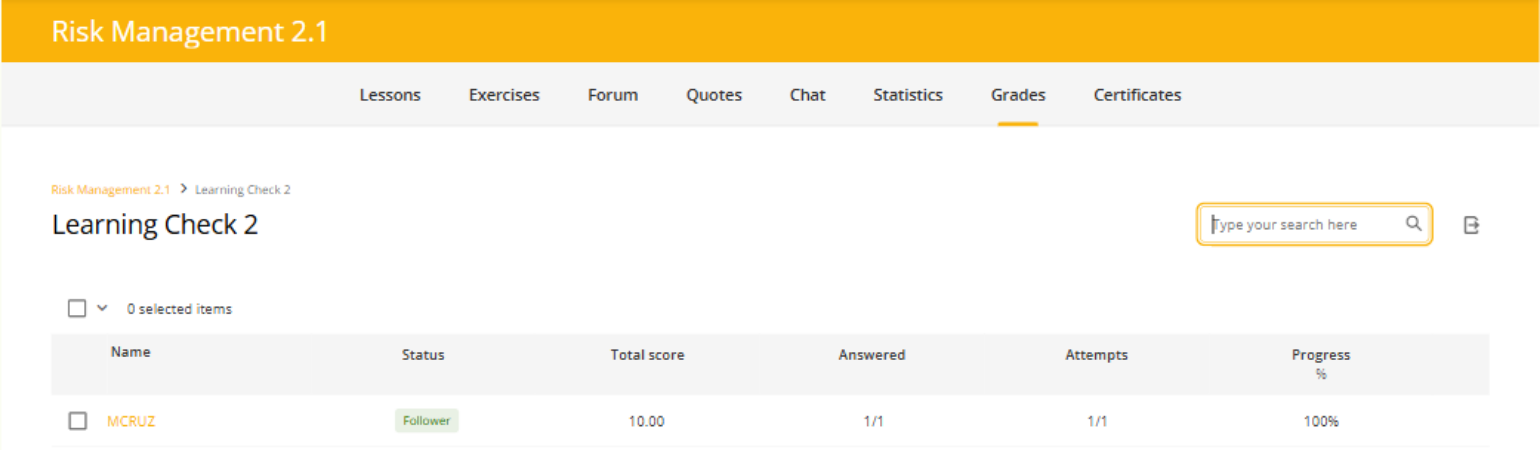
Within a content or an activity, you can view the participant list, the number of completed activities, correct and incorrect responses, and the score.
From the user panel, you will be able to interact with the score and comments area only if it is a manual grading exercise.
Auto-graded activities will not allow you to edit the scores. However, you will have the option to reset the exercise as many times as you want, giving the user another chance to respond.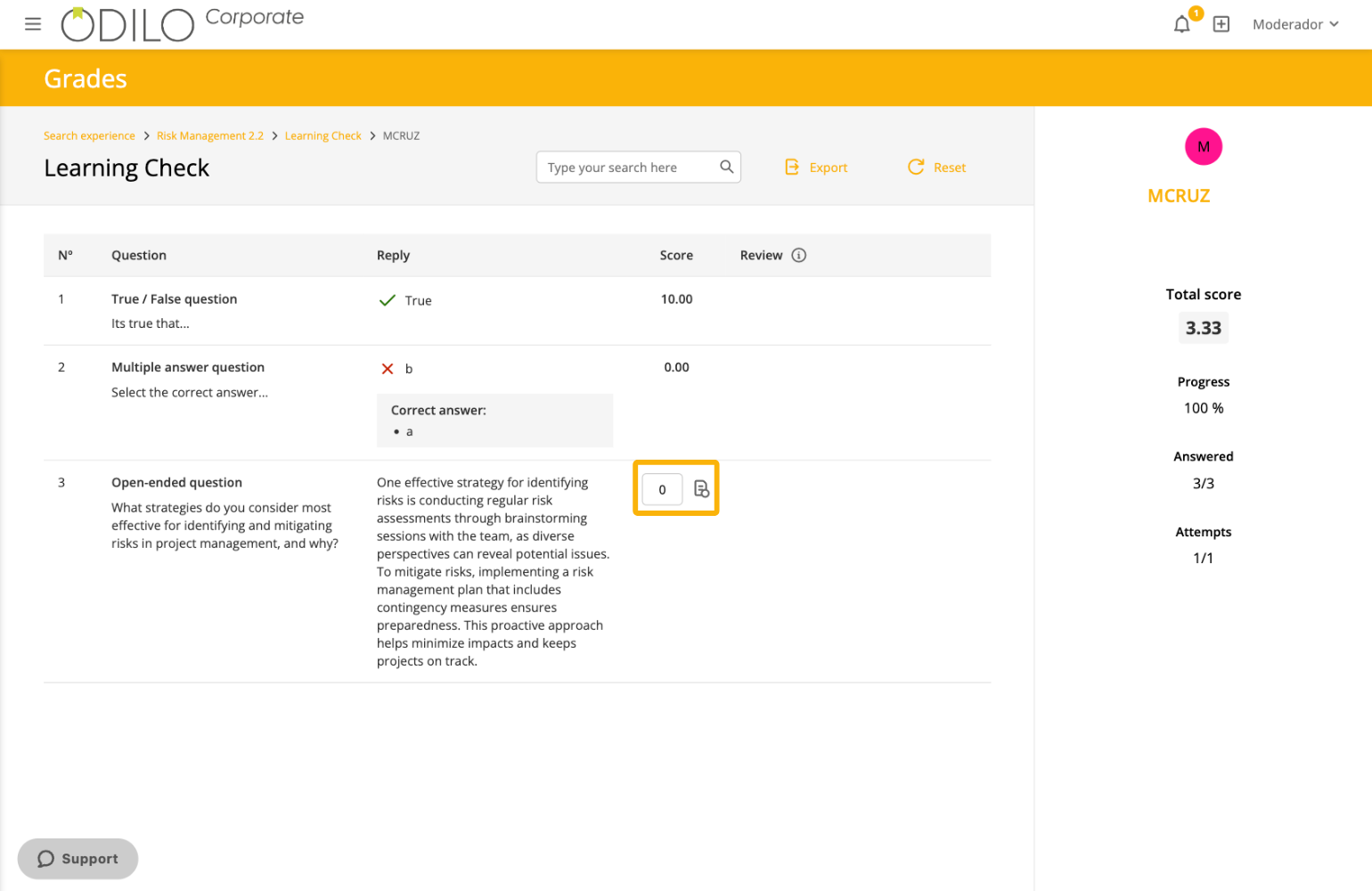
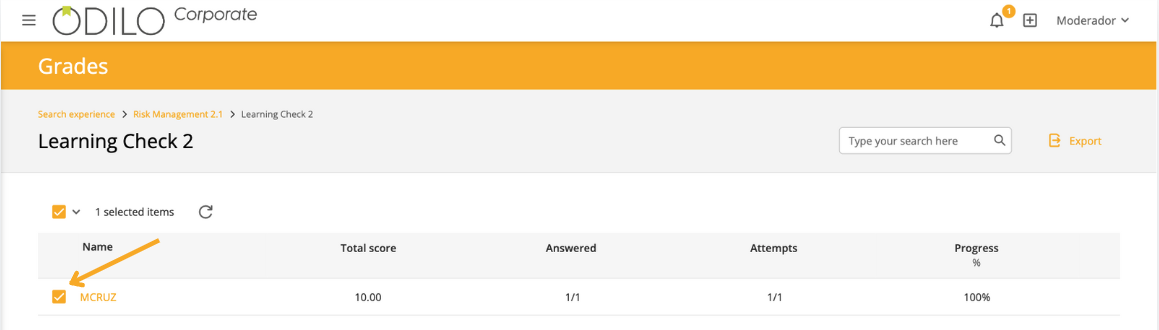
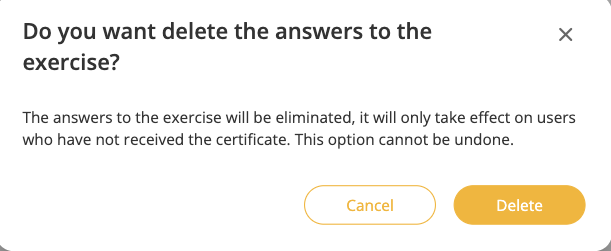
From the grading section, you can reset a user’s exercise if needed. You just need to access the exercise, select the name of the user whose exercise you want to reset, and then click on the arrow that appears on the left after making your selection.