Navigate a Learning Experience
Complete lessons and sections
Experiences are organized by tabs located at the top and by modules and sections. You can navigate through them with a simple click.
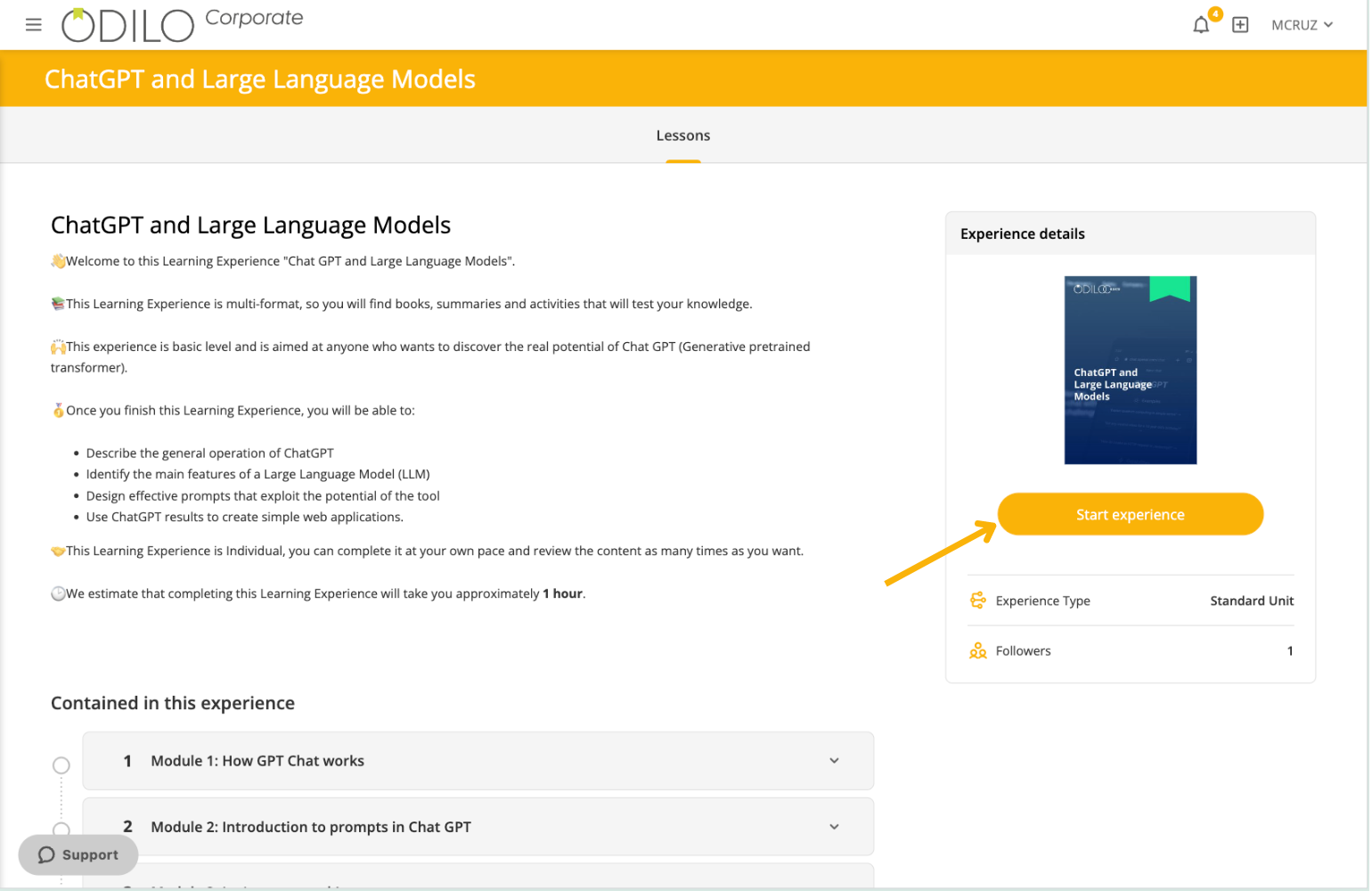
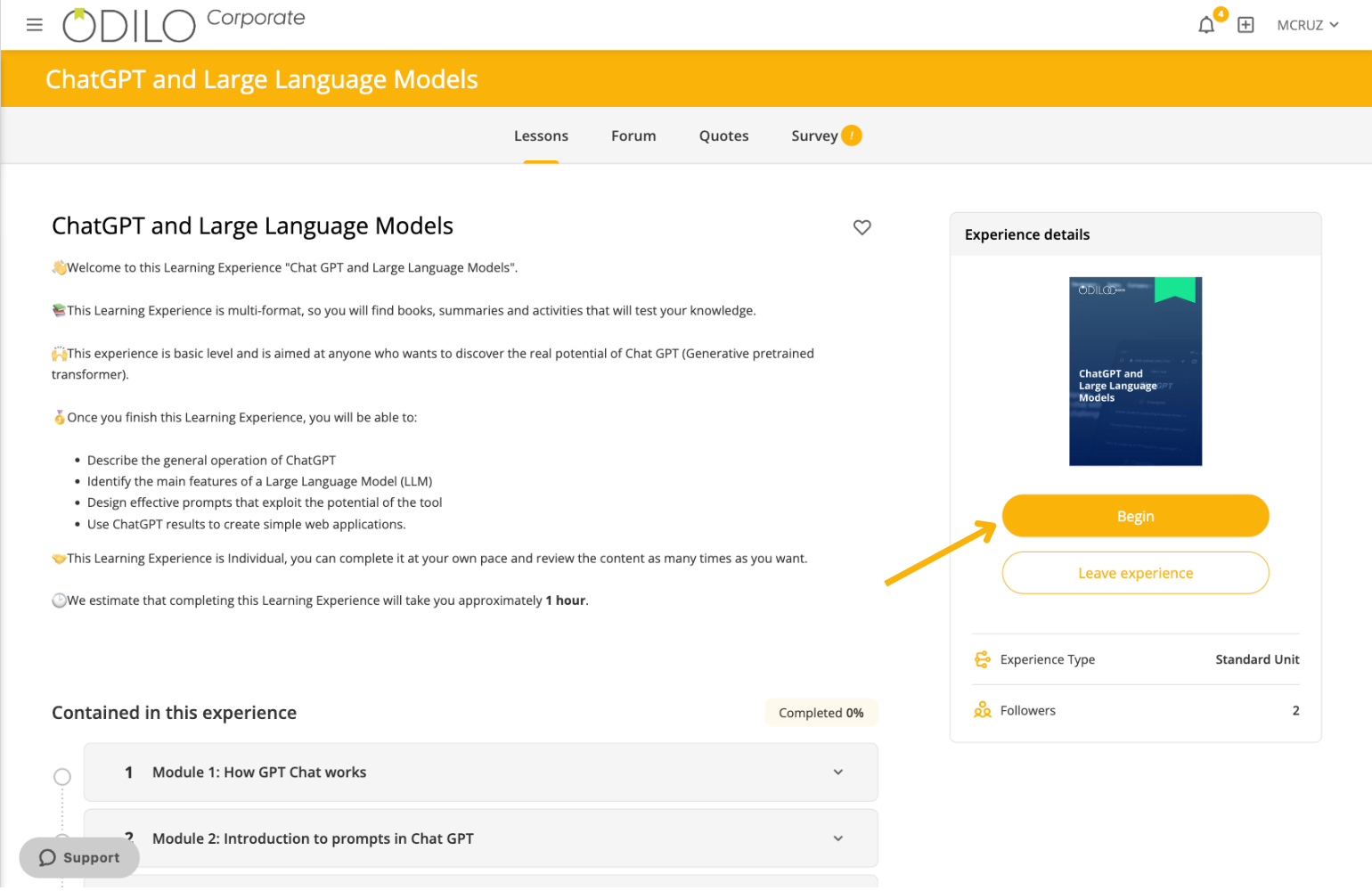
Once inside the Experience, click on the “Start Experience” button and then on “Begin” to start it.
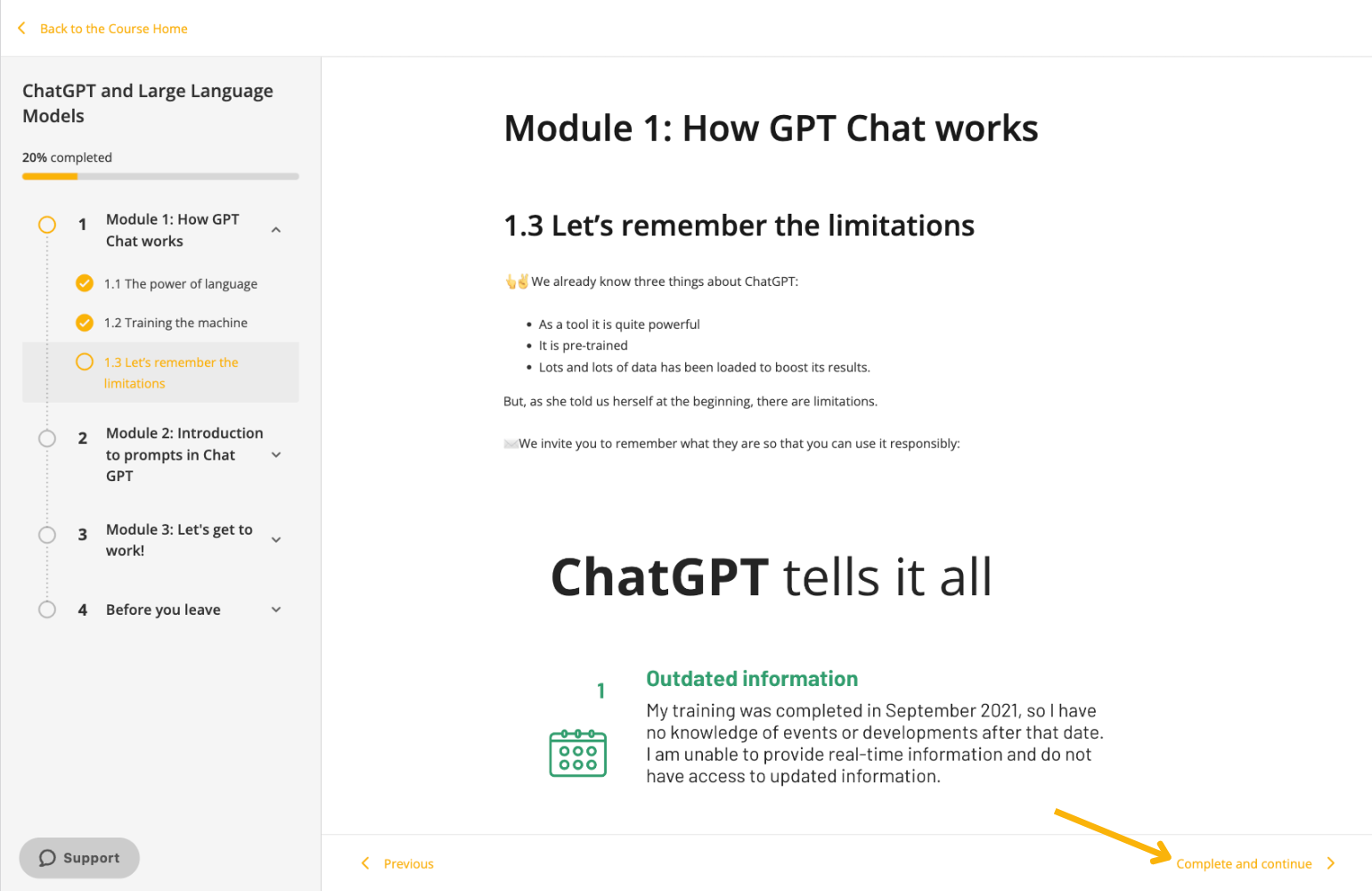
Once the section has been completed, click “Complete and Continue” to proceed to the next section.
To review in detail how to navigate and complete these Learning Experiences, access the following video Successfully Complete an Experience.
Access content within a Learning Experience
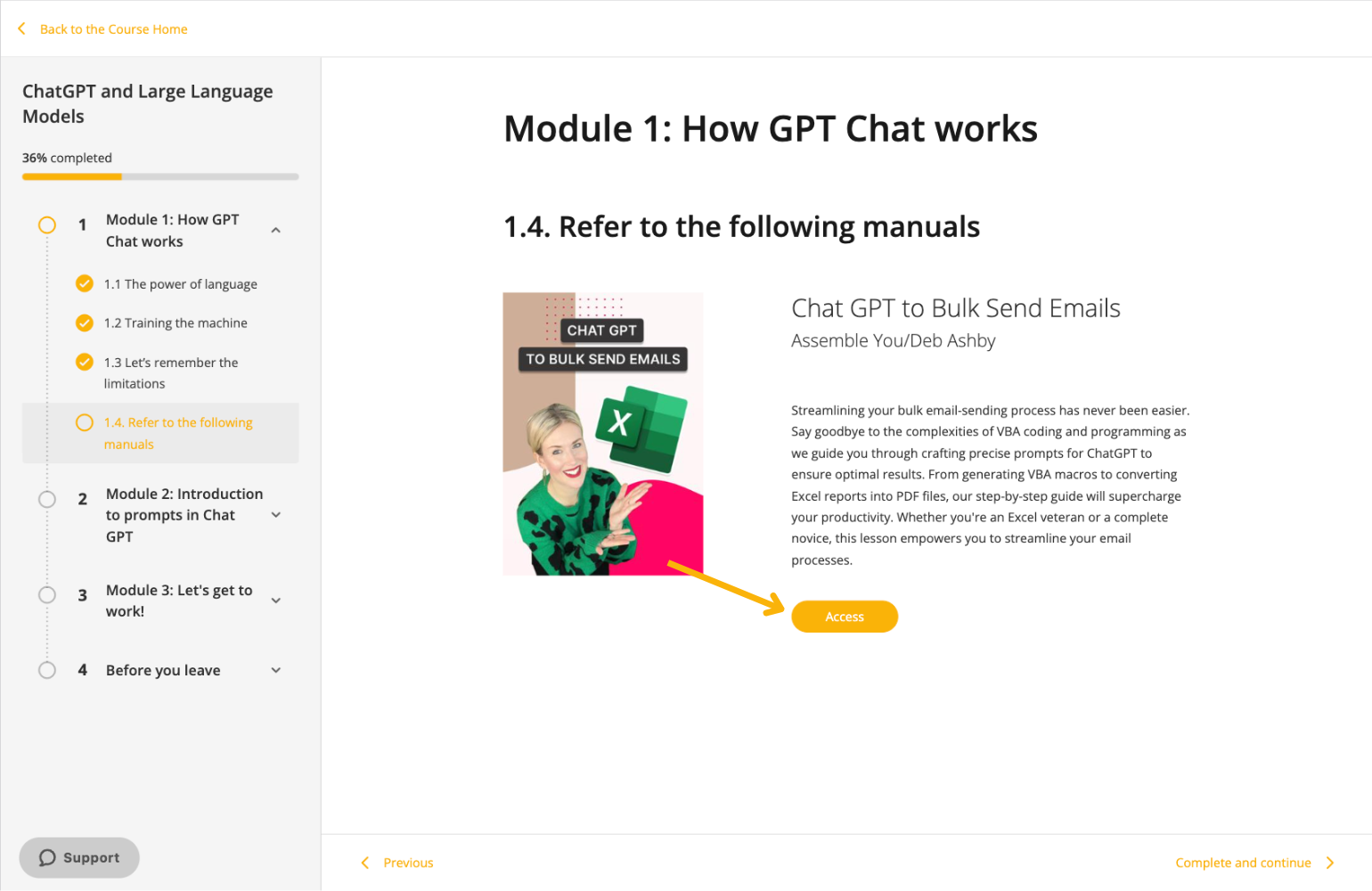
Throughout the experience you may encounter resources from the catalog as part of the content.
In order to access the resource click on the “Access” button. Then click on “Read” in the case of an e-book, “Listen” if it is an audiobook or podcast, and “View” if it is a course.
Complete and submit exercises
Throughout your Learning Experience, you will find exercises designed to help reinforce the knowledge you have acquired.
1. Start an exercise
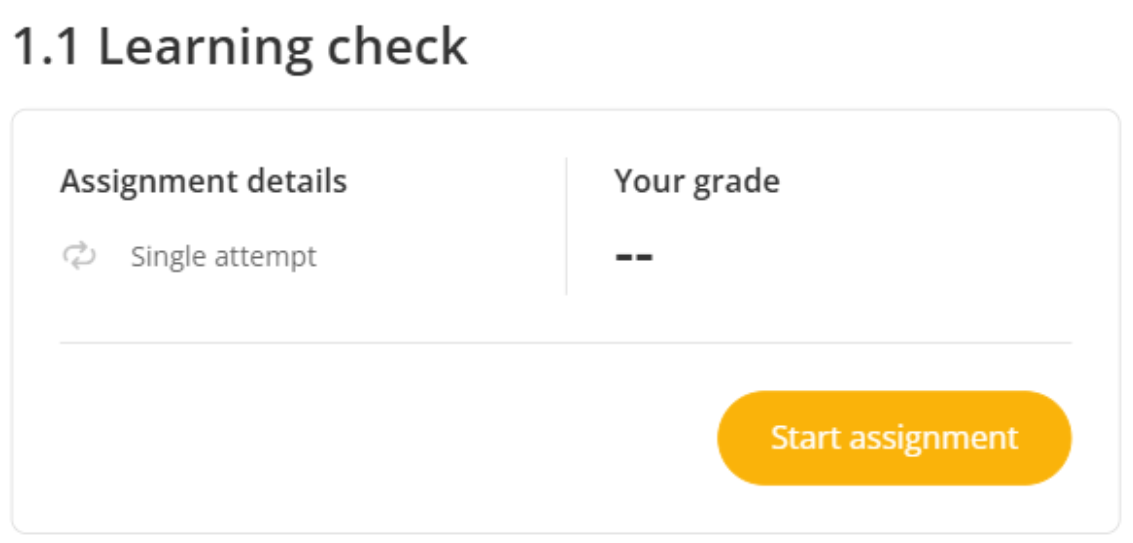
To begin any assessment, click the “Start assignment” button.
2. Complete and finish an exercise
- Single attempt: This exercise allows only one attempt.
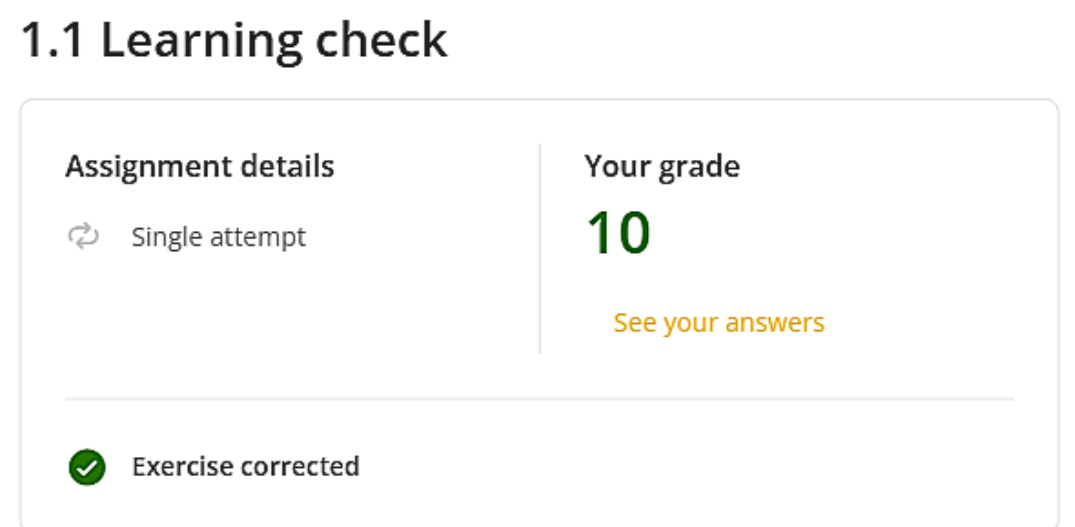
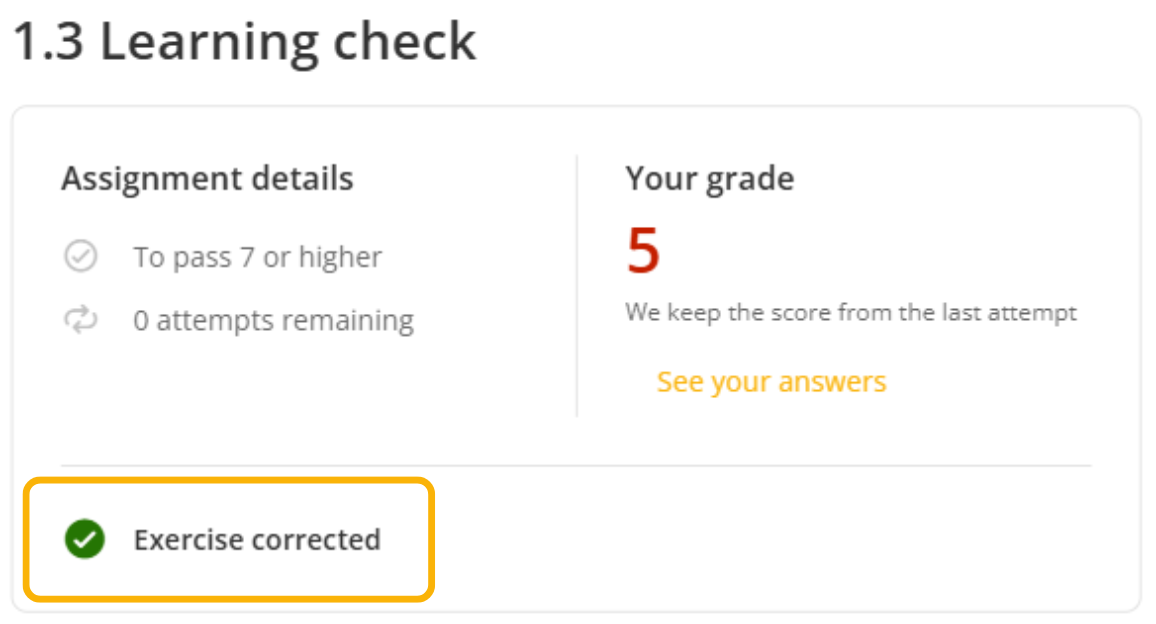
If the exercise is automatically graded, you will see your score immediately along with the message “Exercise corrected”. This confirms that the exercise has been submitted successfully and you can continue with the Learning Experience.
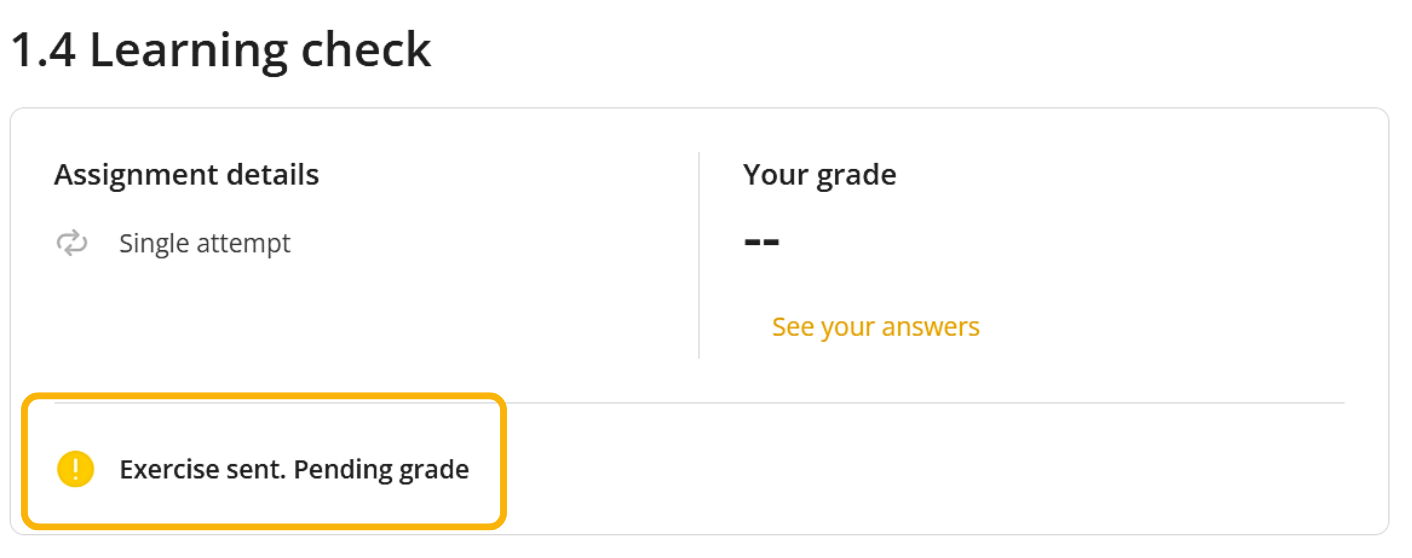
If the exercise requires to be graded by the institution, you will see the message “Exercise sent. Pending grade.” You may continue with the Learning Experience and check your score later.
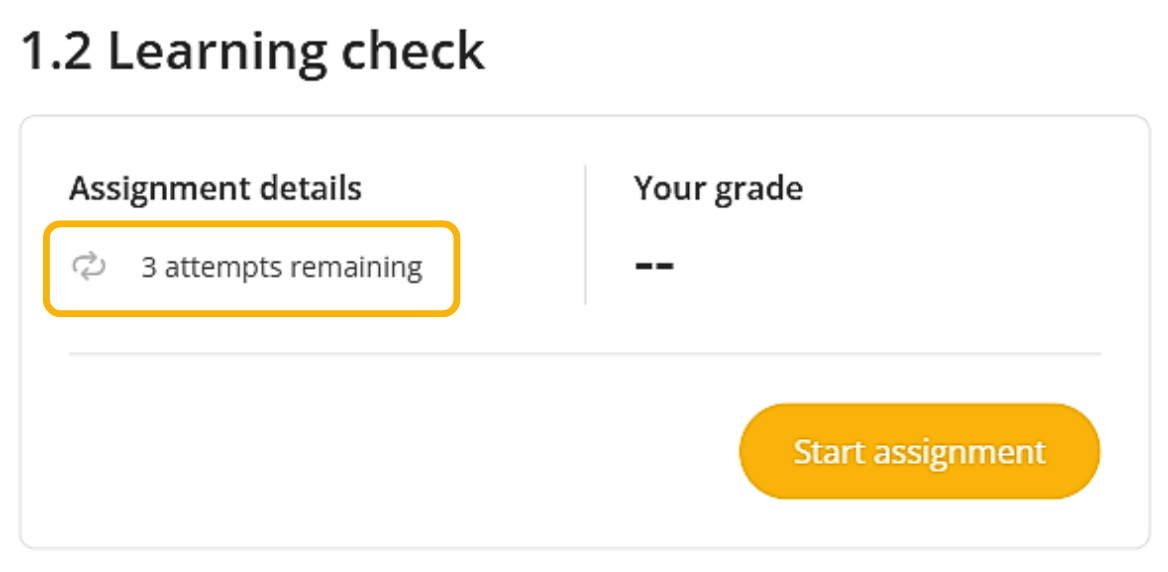
- Multiple attempts: This exercise allows more than one attempt. You will see the Attempts remaining label in the assignment details when you start the exercise.
After submitting your answers, your score will be displayed and you will be able to start again by clicking “Try again”.
If your score is 0, you will only see the “Try again” button.
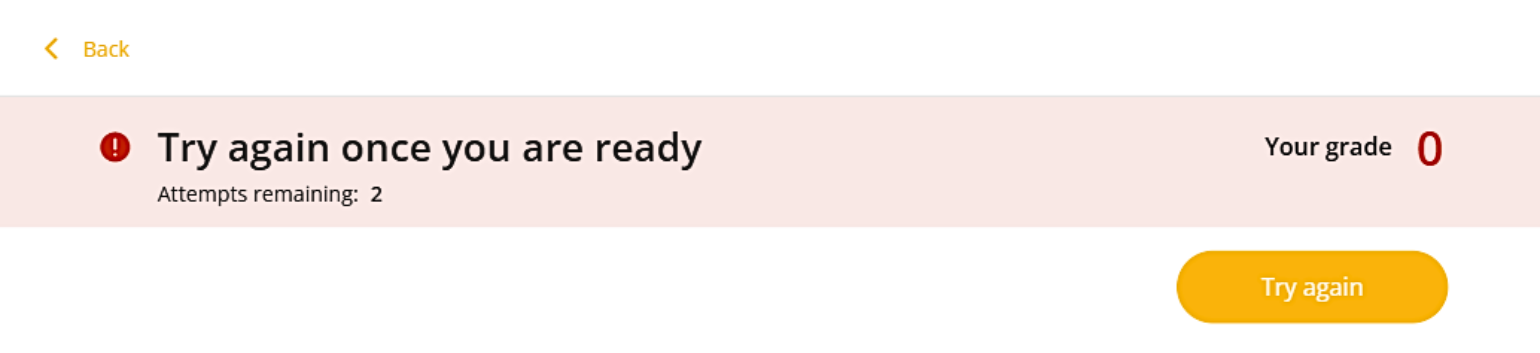
If your score is higher than 0, the “Complete and continue” button will appear, allowing you to correctly finalize the exercise.
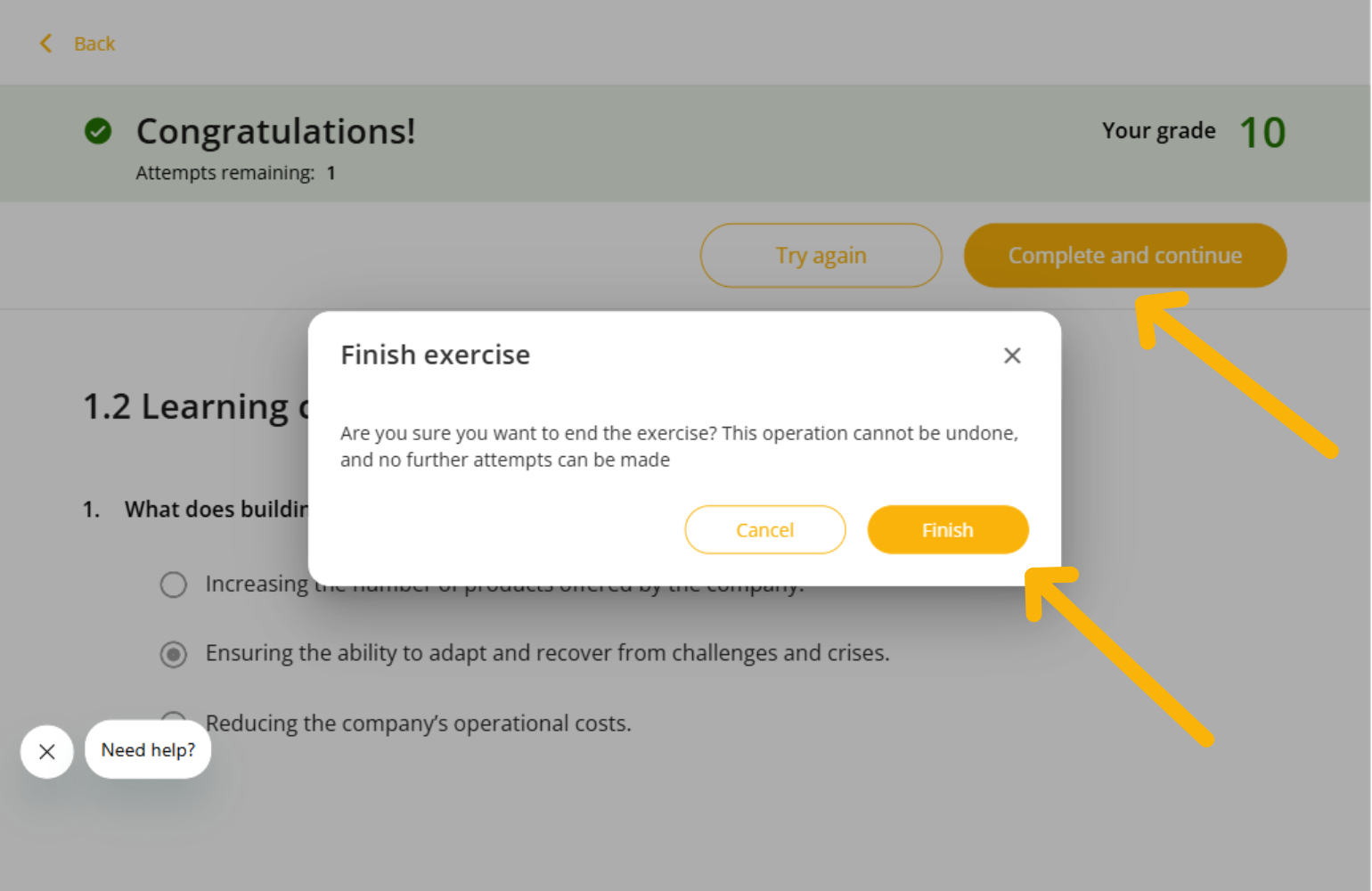
Important: After clicking “Finish,” you will no longer be able to modify your answers.
- Minimum grade requirement: This exercise requires a minimum grade to pass. You will see this information in the assignment details when you start the exercise.
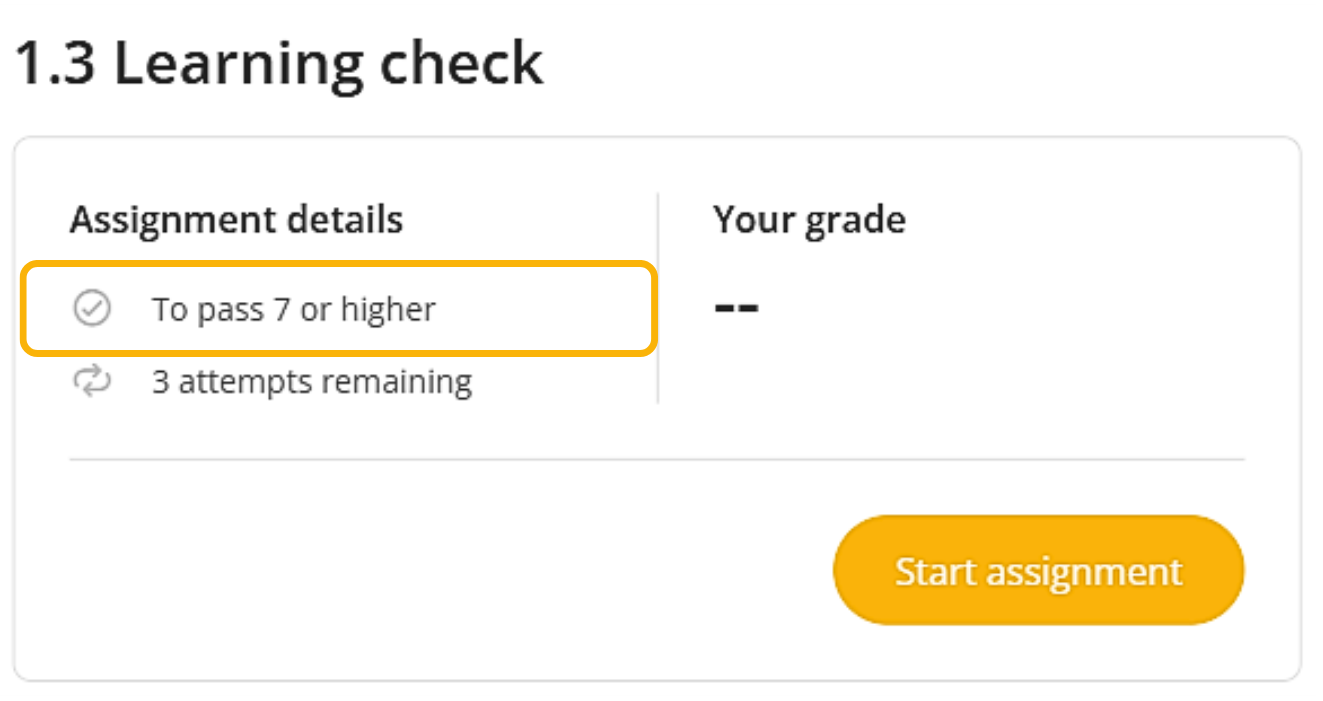
If you meet the minimum required grade, you will be able to click “Complete and continue” to finalize the exercise correctly.
If you do not meet the required grade, you will only see the “Try again” button to make another attempt.
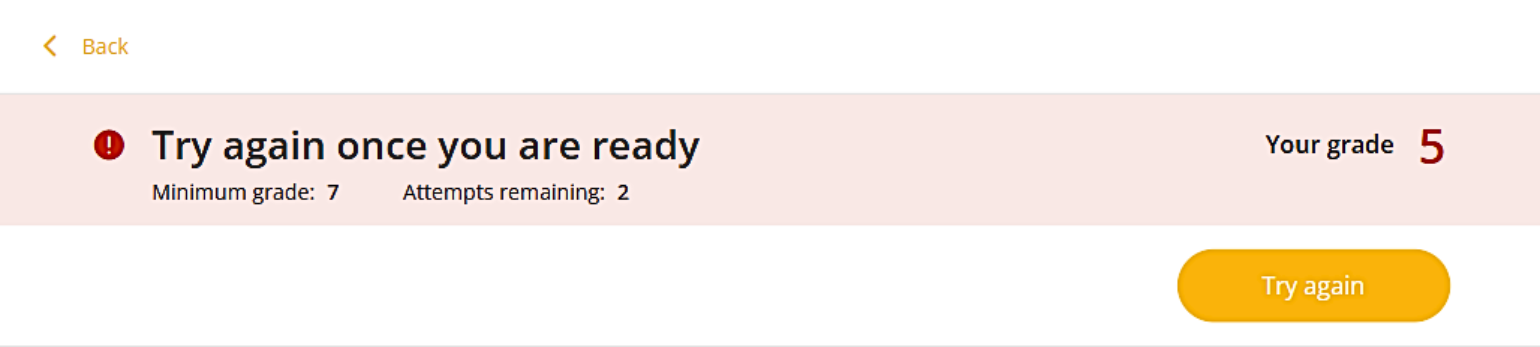
Important: When all available attempts are used, the answers from your last attempt will be submitted, whether or not the minimum grade has been achieved.
You will know that you have completed the exercise successfully when you see the “Exercise corrected” label.
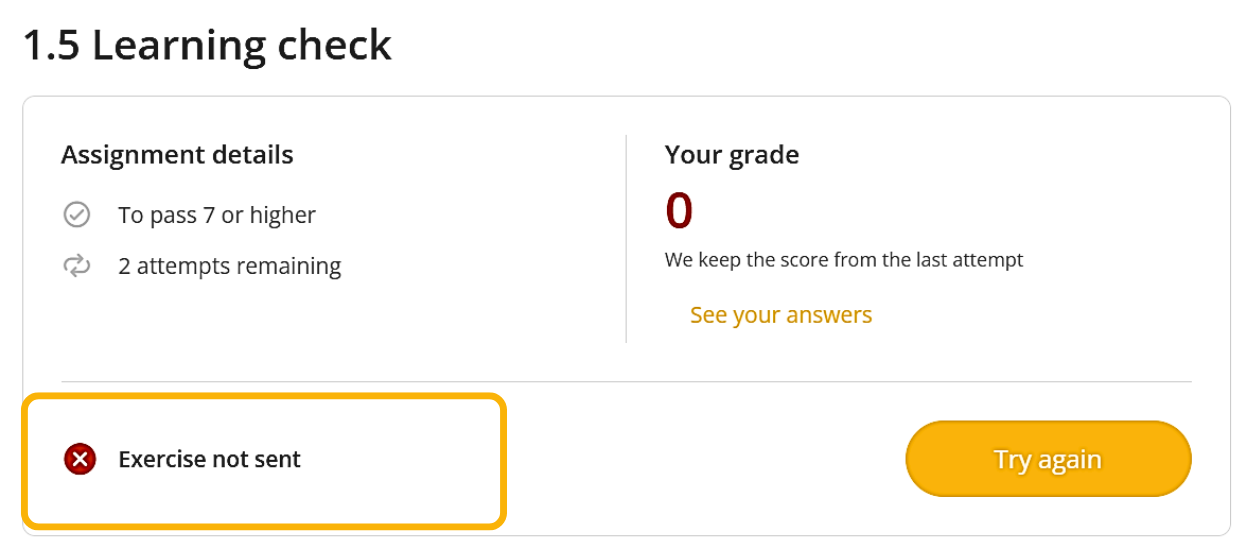
You will see the “Exercise not sent” label if the exercise was not submitted correctly. Open the exercise and submit it to finish.
Once your exercise has been submitted successfully, click “Complete and continue” to move on to the next module of the Learning Experience.
Extras: Surveys, forum and chat
Some of the Learning Experiences have survey, forum and chat tabs. If you do not find these tabs, please consider that the moderator of the experience may not have activated them.

The “Survey” tab allows you to provide feedback on the Learning Experience you have participated in.
In the “Forum” tab you can participate in discussion threads initiated by the moderator of the experience. You will be able to share opinions and interact with the rest of the users that are part of that Learning Experience. If you get the message “No thread started yet” it is because the moderator has not yet activated the forum in this experience.
The “Chat” tab works as instant messaging between all users of the Learning Experience. Participants and moderators can communicate through this tab.