Share the experience with other users
To invite users to work on your experience, there are three different options:
Watch the following video to see the ways of sharing an experience.
Share through link (most recommended option)
You can share the link with the users you want to participate in your experience.
Click on the link icon  located in the “Information/Lessons” tab within your experience. Copy the code and send it to the participants.
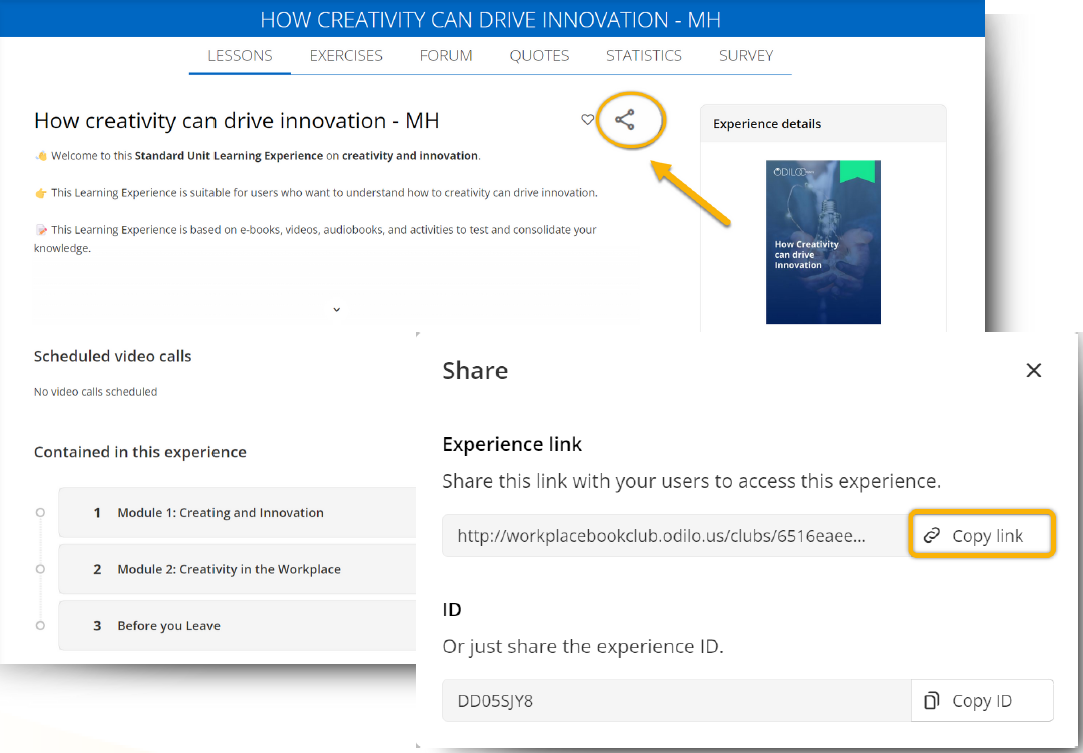
Participants must log in to their Learning Ecosystem, click on the link and they will be linked directly to your Learning Experience.
Share via code
You can share the ID code of your experience.
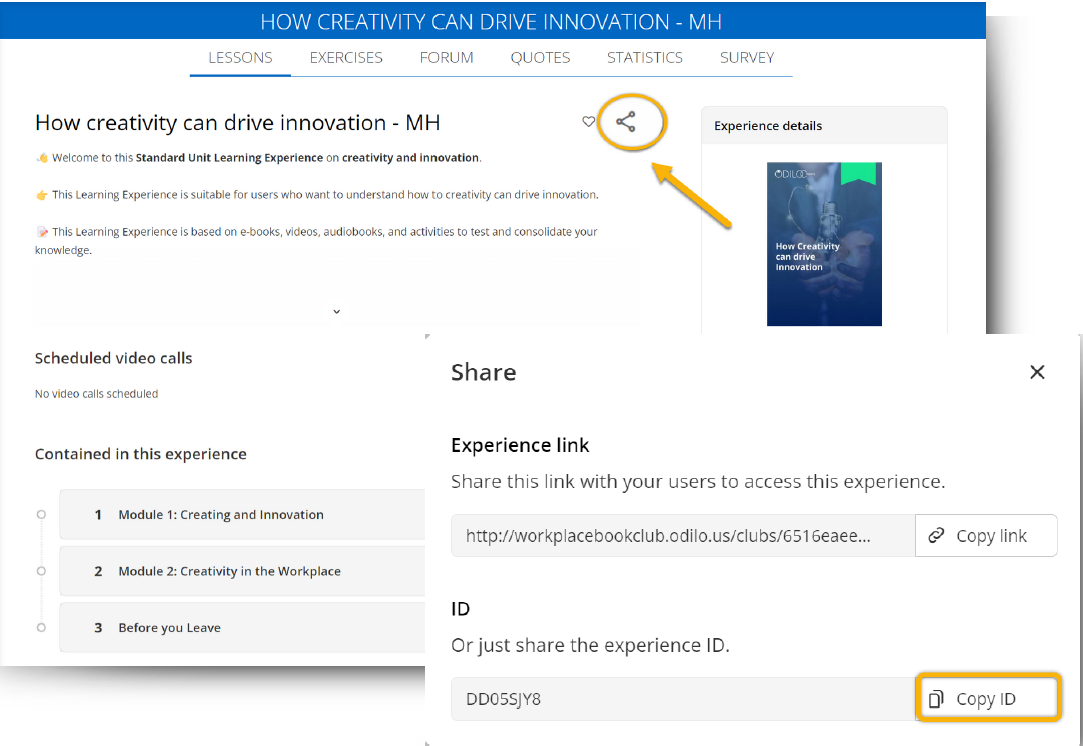
Participants need to access “Go to Learning Experiences” from their Learning Ecosystem, and then they will only have to enter it into their platform by clicking the button  which they have next to their username at the top right.
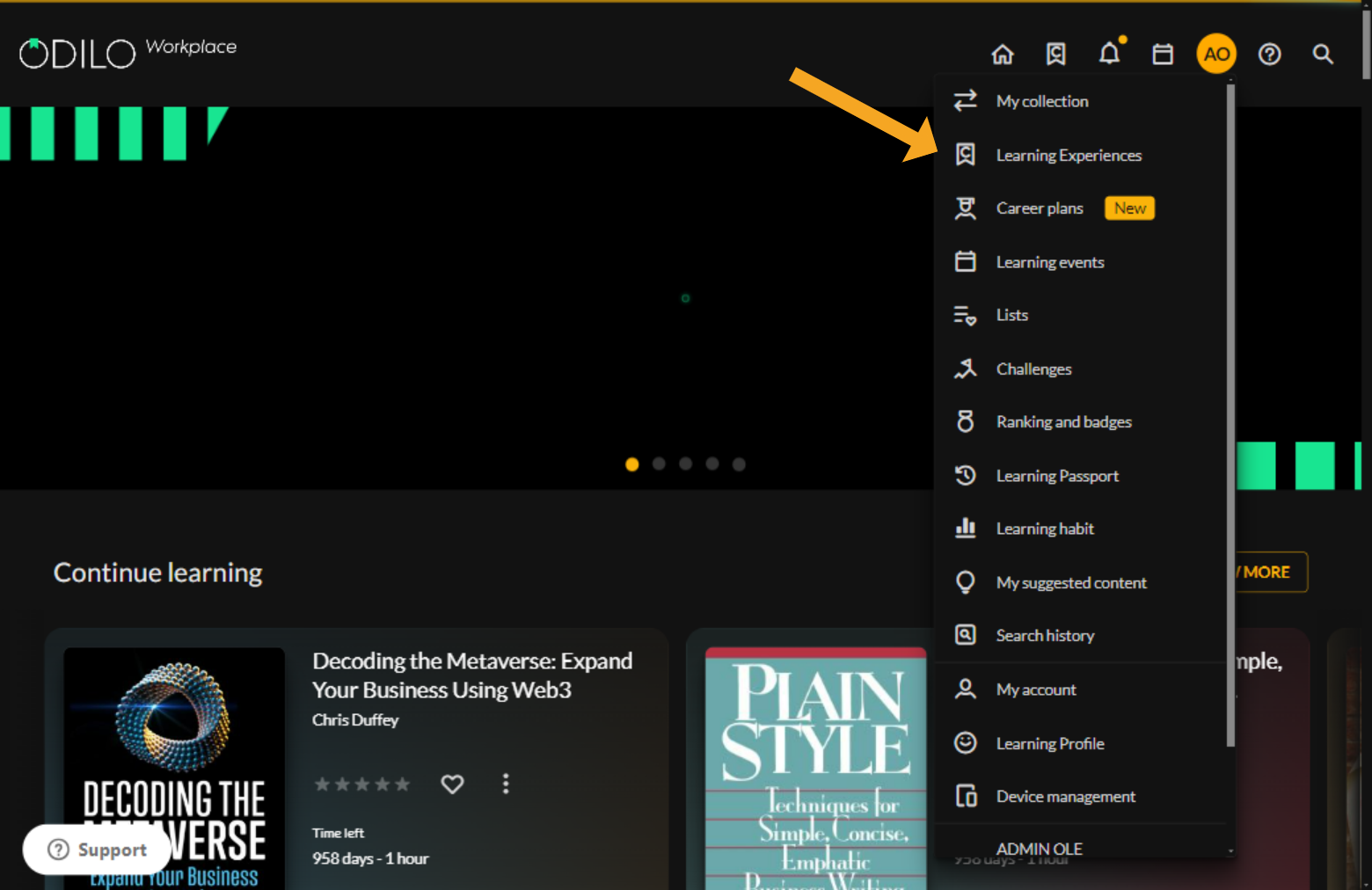
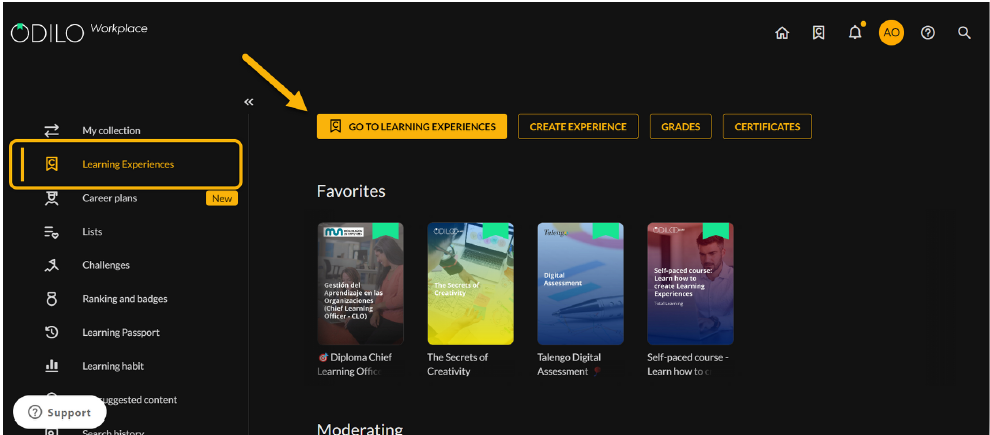

Manually add users (Recommended for small groups)
You can add participants to your Experience by indicating their user IDs. This will link them directly and they will be able to access from their carousels at any time.
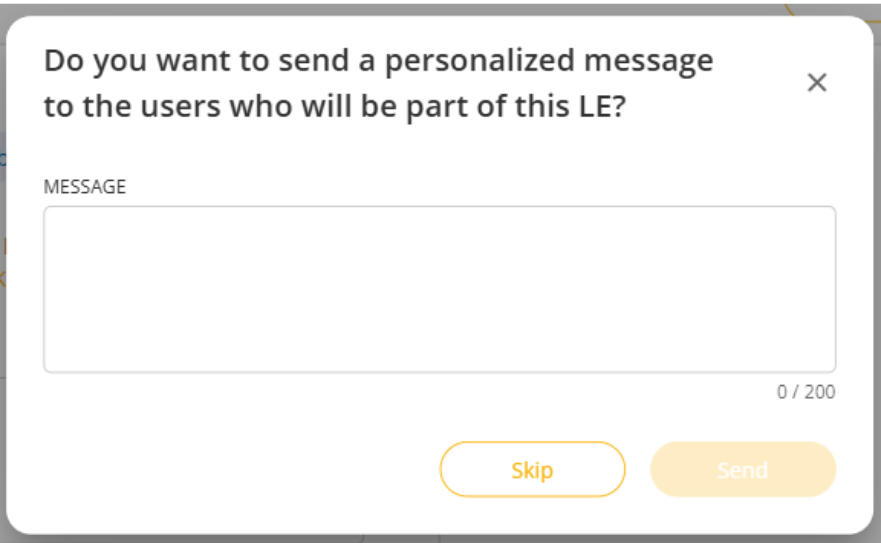
You can include a message if you wish to notify them that they have been added to a new Learning Experience.
To do this, within your Experience, click on “Users” from your editing button. This option will only be available if your Learning Experience is set to Private. If you want to change this setting, click the first option in the edit menu and select “Private visibility.”
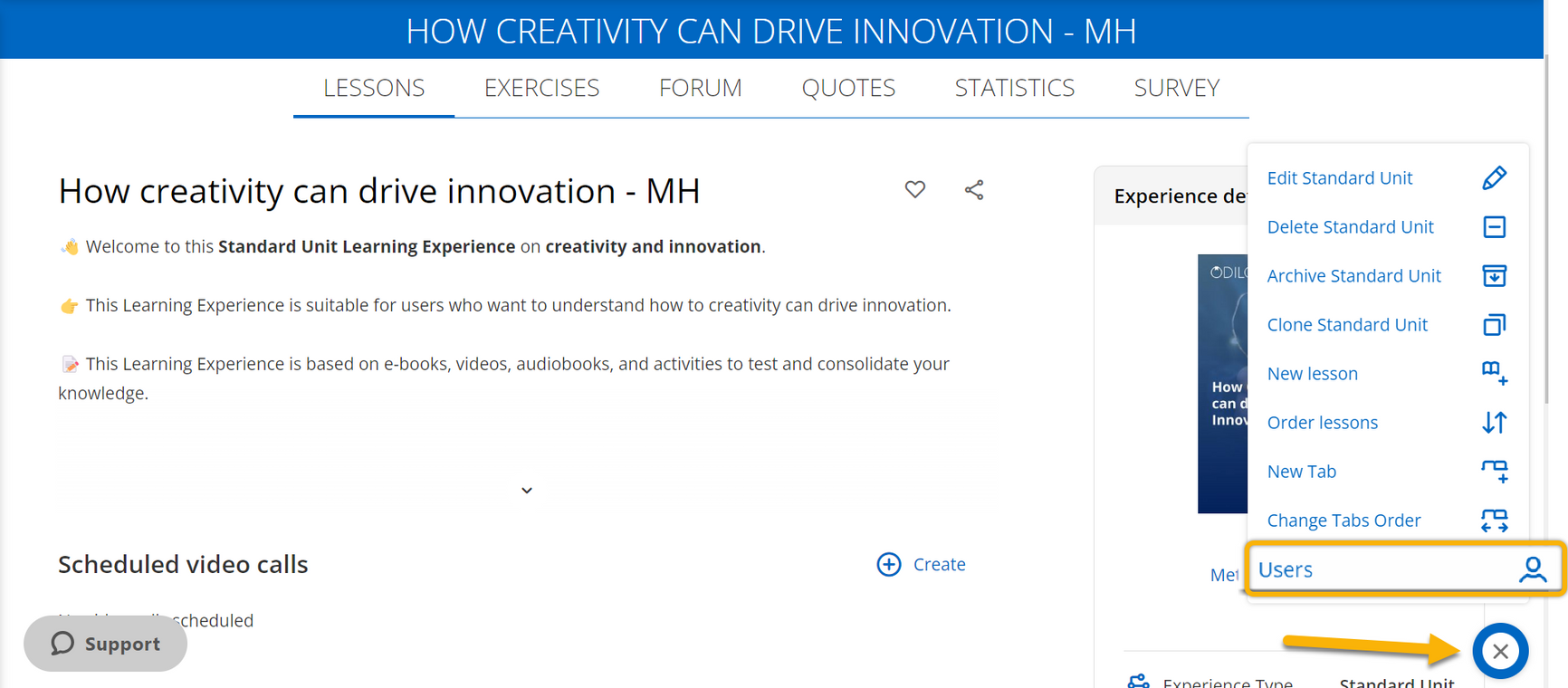
To add a user manually, you need to know their identifier on the platform. From this section, you can add as many users as needed and remove them if necessary.
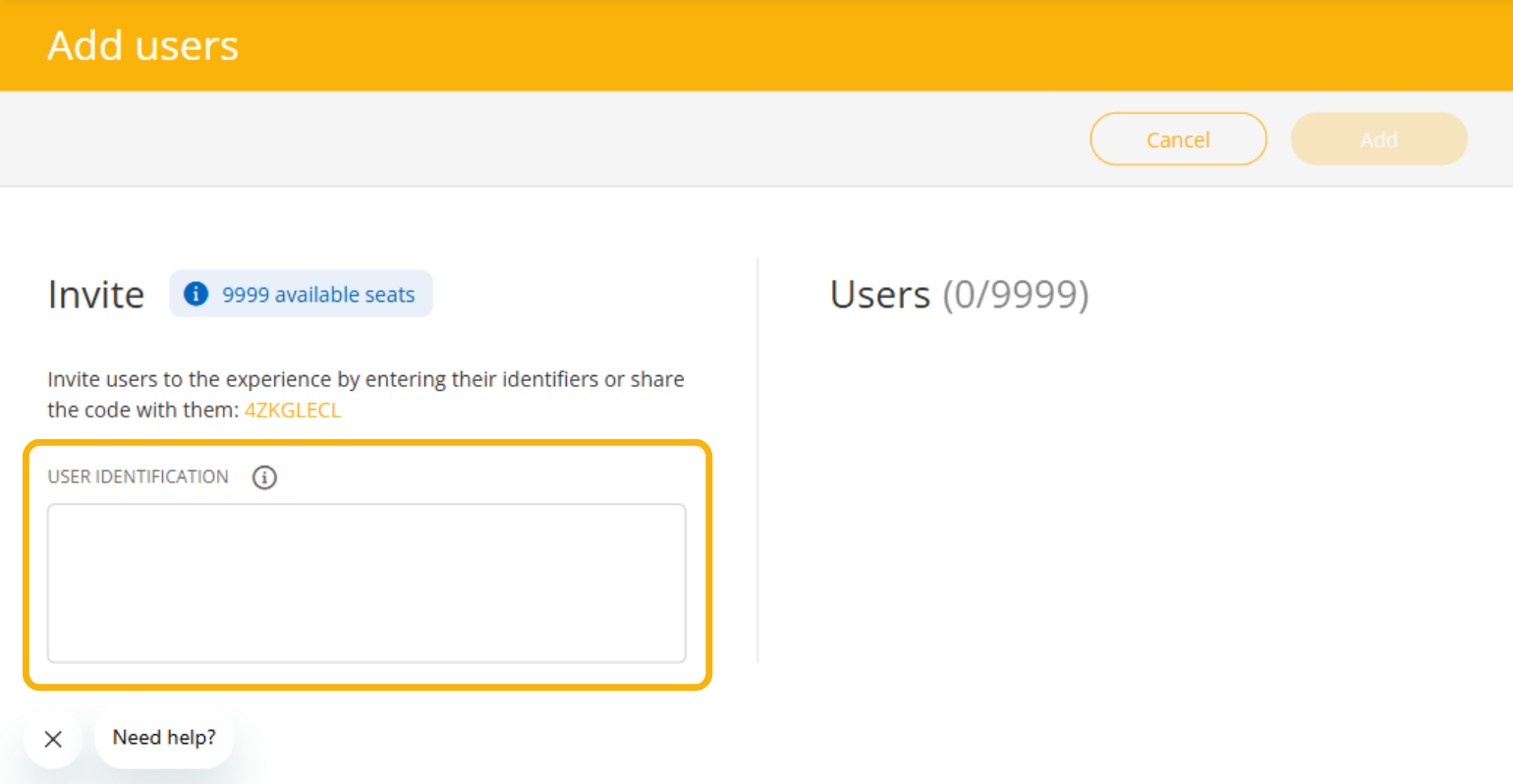
Click the button in the top-right corner to add users manually.
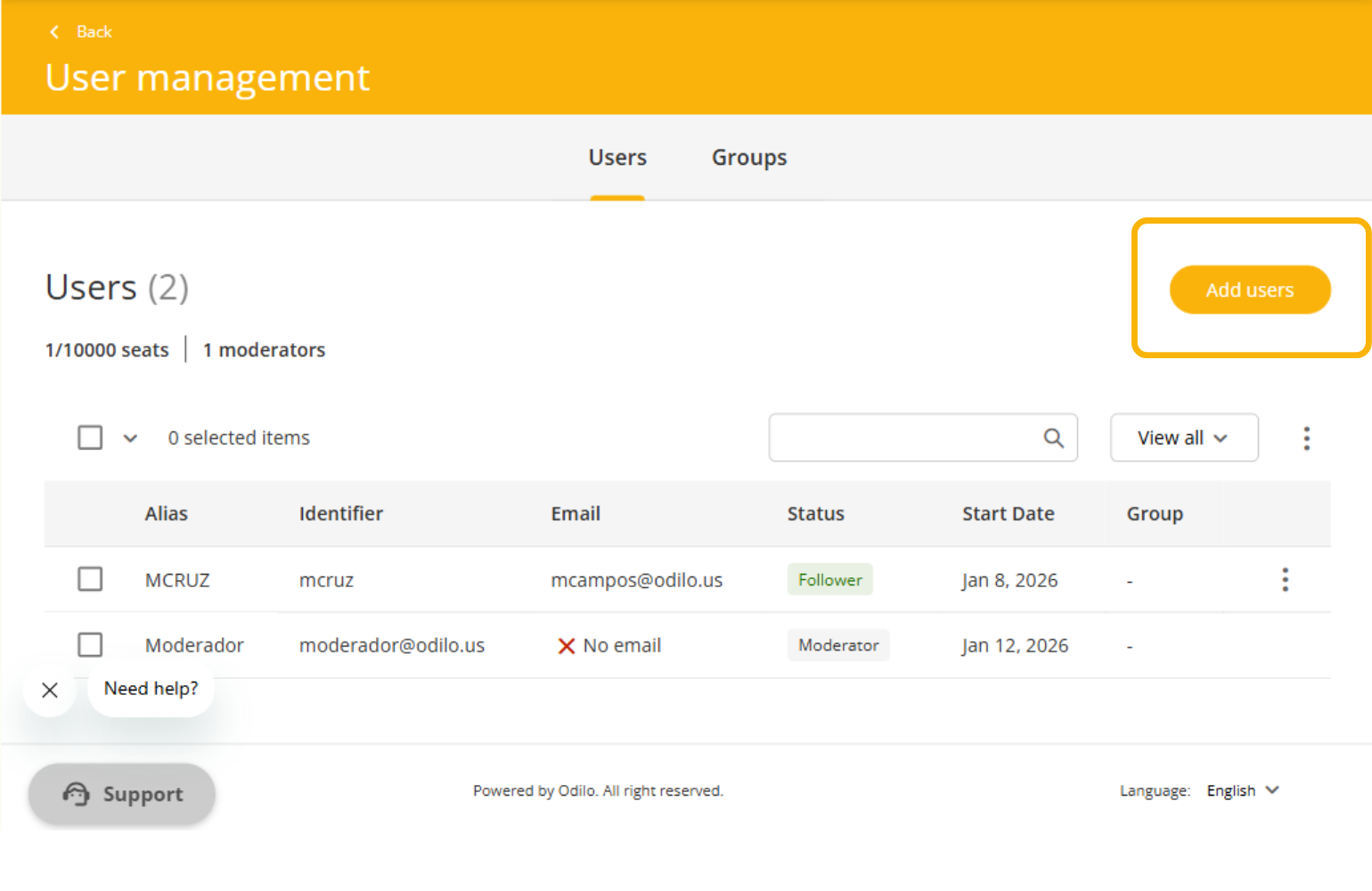
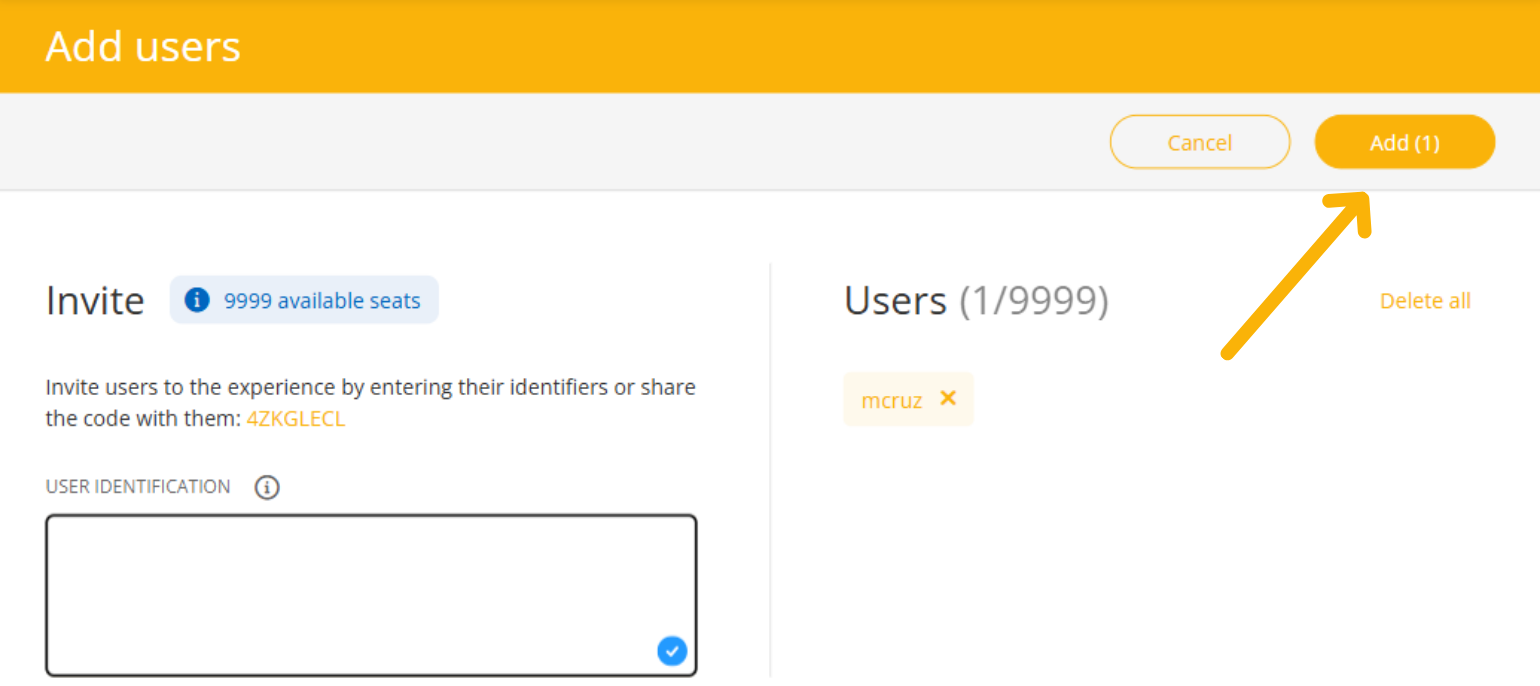
Enter the user identifier. If you want to add more than one user, separate the identifiers with commas and press the Enter key on your keyboard.
Once the user has been added, click “Add” in the top-right corner.
You may include an optional message to notify users that they have been added to a new Learning Experience.